

Plugin problems
Plugin shows a blank white screen
Plugin shows a blank white screen
A blank screen usually means the plugin UI failed to load. Try these steps in order:
- Close and reopen the plugin. Right-click the canvas, select Plugins > LintKit, and reopen it. This forces the UI to reload.
- Check for Figma updates. An outdated version of Figma can cause plugin rendering failures. Go to Figma menu > Check for updates and install any available updates.
- Disable other plugins. In rare cases, another plugin running simultaneously can interfere with LintKit’s UI. Close all other plugins and reopen LintKit.
- Reinstall the plugin. If the problem persists, uninstall LintKit from the Figma Community page and reinstall it. Your settings are stored per user and persist through a reinstall.
Plugin freezes on large files
Plugin freezes on large files
LintKit processes nodes in batches to avoid freezing Figma, but files with thousands of nodes can still cause slowdowns:
- Scan a selection instead of the full page. Select a specific frame or section on the canvas before opening LintKit. This is much faster than scanning the full page.
- Close unused pages. Figma can be slower with many pages loaded, even though LintKit only scans the current page.
- Close and reopen if unresponsive. If the plugin becomes completely stuck, close it and reopen. Scan a smaller scope.
Scan is slow
Scan is slow
Scan time scales with the number of nodes in the current scope. A page with a few hundred nodes scans in under a second. A page with tens of thousands of nodes may take several seconds.This is expected. Some rules (like Orphaned Fills with library matching) involve additional work per node.To speed things up:
- Use selection scan. Select specific frames instead of the entire page.
- Disable unused rules. Each enabled rule adds to scan time. Turn off rules you’re not actively using in Settings.
- Close other plugins. Other plugins compete for Figma’s processing time.
Library and style problems
Library not showing up
Library not showing up
LintKit only treats external libraries as active when you explicitly add them. If a library isn’t showing up:
- Make sure the library is registered. Libraries must be added by URL in the Sources panel, or by running LintKit inside the library file. Using a component from a library in your working file is not enough to register it.
- Check your network connection. Library features require network access. When offline, only cached registered libraries are available, but core scanning still works.
-
Check your Figma Personal Access Token. Library-aware features (Smart Replace, adding libraries by URL) require a PAT with the correct scopes. Go to Settings and verify a token is connected. Your token needs all four scopes:
file_content:readfile_metadata:readlibrary_content:readlibrary_assets:read
- Check if the library was removed. Removing a library fully purges it — it won’t reappear until you add it again explicitly.
No library suggestions for orphaned styles
No library suggestions for orphaned styles
When LintKit flags an orphaned fill or stroke, it suggests the nearest matching style from your libraries. If no suggestions appear:
- No libraries registered. You need at least one library added in the Sources panel (by URL or by running LintKit inside the library file). LintKit also needs network access to read library styles.
- No close matches exist. LintKit only suggests styles within your configured
colorTolerance(default:5Delta E). If no library style is close enough, no suggestion appears. Raise the tolerance in Settings to see broader suggestions. - The file has no library styles. If you haven’t registered any libraries, there are no styles to suggest.
- Smart Replace needs a connected token. Cross-library style matching requires a Figma Personal Access Token. Without one, Smart Replace only matches against styles already in the current file. Add a token in Settings or during first-run setup.
Library shows styles but no components
Library shows styles but no components
This happens when a library file has components that aren’t formally published through Figma’s library publishing flow. Common causes:
- Duplicated or forked Community files. When you duplicate a Figma Community file, publication status is not preserved. The file contains components, but Figma doesn’t treat them as published library components.
- Styles published without components. The library author may have published color and text styles but not toggled components on for publishing.
- Open the library file in Figma (you need edit access).
- Open the Assets panel in the left sidebar, or go to File menu → Publish styles and components.
- In the publish dialog, toggle on the components you want to make available.
- Click Publish changes.
This is a Figma platform behavior, not a LintKit limitation. Figma’s REST API only exposes components that have been formally published as library assets.
Tokens Studio won't connect
Tokens Studio won't connect
See the dedicated Tokens Studio troubleshooting section, which covers:
- API key rejection
- No rules auto-configured after sync
- Stale tokens
- Network errors
- Variable disconnection after renaming tokens
- Theme switching not working
- Designers seeing different token versions
GitHub sync failing
GitHub sync failing
See the dedicated GitHub troubleshooting section, which covers:
- Authentication errors (401/403)
- File not found (404)
- Token format not detected
- Network timeouts
- Tokens lost after team member pushed
Finding problems
'5 free fixes' message
'5 free fixes' message
Free users get 5 one-click fixes per session. When you see this message, you’ve used all 5 for the current session.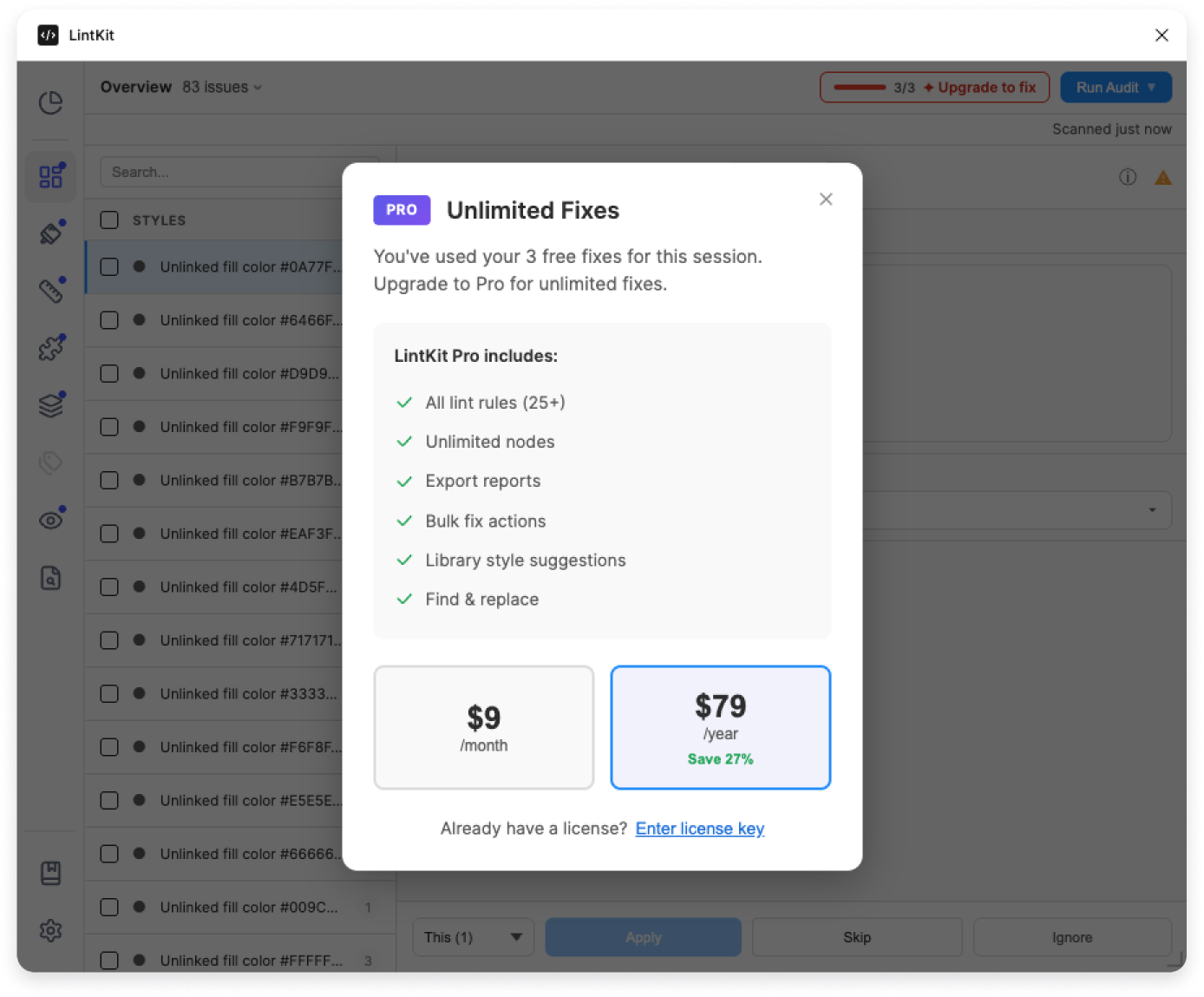
- Close and reopen the plugin to reset the counter and get 5 more fixes.
- Upgrade to Pro for unlimited fixes. See pricing.
The limit applies to one-click fixes only. You can always fix findings manually by editing layers on the canvas — the limit doesn’t prevent you from making changes yourself.
Library-only rules showing no findings
Library-only rules showing no findings
Four rules only produce findings when scanning a published library file:
- Unused Styles — finds styles not used on the current page
- Hidden Components — finds components hidden from publishing
- Missing Descriptions — finds components and styles without descriptions
- Variable Completeness — checks variables for missing mode values, broken aliases, and missing descriptions
No findings inside component instances
No findings inside component instances
LintKit skips layers inside component instances. Layers inside an instance are controlled by the main component — editing them would create overrides rather than fixing the root cause.To fix findings that originate from a component, navigate to the main component and fix them there. Changes propagate to all instances automatically.
Mixed values on a layer
Mixed values on a layer
LintKit skips layers with mixed values because it can’t determine the intended value:
- Mixed corner radii — each corner has a different radius
- Mixed fonts — a text layer contains multiple font families or sizes
- Mixed stroke weights — stroke weights differ across sides
Rotated elements not being checked
Rotated elements not being checked
LintKit excludes elements rotated more than 0.1 degrees from fractional pixel checks and some spacing checks. Rotation legitimately produces fractional values — a rectangle at a 15-degree angle has sub-pixel coordinates even if it was placed on a whole pixel before rotation.
Findings disappeared after editing
Findings disappeared after editing
LintKit rescans automatically when your file changes. If a finding disappeared, your edit resolved the underlying problem. For example, changing a fill from a raw hex value to a library style removes the orphaned fill finding.This is expected — findings stay in sync with the current state of your file.
Broken variable findings appear after token sync
Broken variable findings appear after token sync
If you renamed or deleted tokens in Tokens Studio or your GitHub repository, Figma variables that referenced those tokens may now be broken. LintKit’s Broken Variables rule catches these disconnected references.To fix: detach the broken variable binding (keeps the current resolved value) and then re-bind to the correct variable. See Broken Variables for details.
Configuration problems
Settings not persisting across sessions
Settings not persisting across sessions
LintKit stores settings per user per plugin. Your configuration should persist when you close and reopen the plugin.If settings are resetting:
- Close and reopen cleanly. Settings save when the plugin runs — make sure you close the plugin (not just minimize Figma) and reopen it.
- Check browser storage (web app only). Clearing browser data or using incognito mode resets plugin storage. Use the Figma desktop app for reliable persistence.
- Reinstall as a last resort. Uninstalling resets settings, so only do this if settings aren’t persisting anyway.
Rules I enabled don't show findings
Rules I enabled don't show findings
Some rules require configuration before they produce findings:
Also check whether Tokens Studio strict mode is suppressing findings that match tokens.
Too many findings
Too many findings
If LintKit reports an overwhelming number of findings:
- Use selection scan. Select a single frame and fix it, then move to the next.
- Disable noisy rules. Turn off rules you’re not addressing right now. Start with 2-3 high-priority rules and add more as you go.
- Increase tolerances. If findings are too strict for your current design phase, increase
spacingToleranceorcolorTolerance. - Focus on one category. Use the navigation tabs (Styles, Values, Components, etc.) to work through one category at a time.
Tokens Studio overriding my manual config
Tokens Studio overriding my manual config
When the Tokens Studio integration is enabled, token values take precedence over your manual configuration for the same rule. If you see unexpected values in your allowed spacing or radii lists:
- Check if the integration is enabled in Settings > Integrations
- Check which token type toggles are on (
enforceColors,enforceSpacing,enforceRadii) - Turn off the specific toggle for the rule you want to configure manually
tokensStudio.enforceSpacing reverts the Spacing Scale rule to your manual allowedSpacing values.Feature requests and bug reports
If you’ve found a bug, have a feature request, or need help with something not covered in these docs:- Bug reports and feature requests: Email [email protected] with a description of the problem, what you expected to happen, and what actually happened. Screenshots or screen recordings are helpful.
- Documentation feedback: If something in these docs is unclear, incorrect, or missing, let us know at [email protected].
- What you were doing when the problem occurred
- What you expected to happen
- What actually happened
- Your Figma environment (desktop app or web, operating system)
- Whether the problem is reproducible or intermittent