

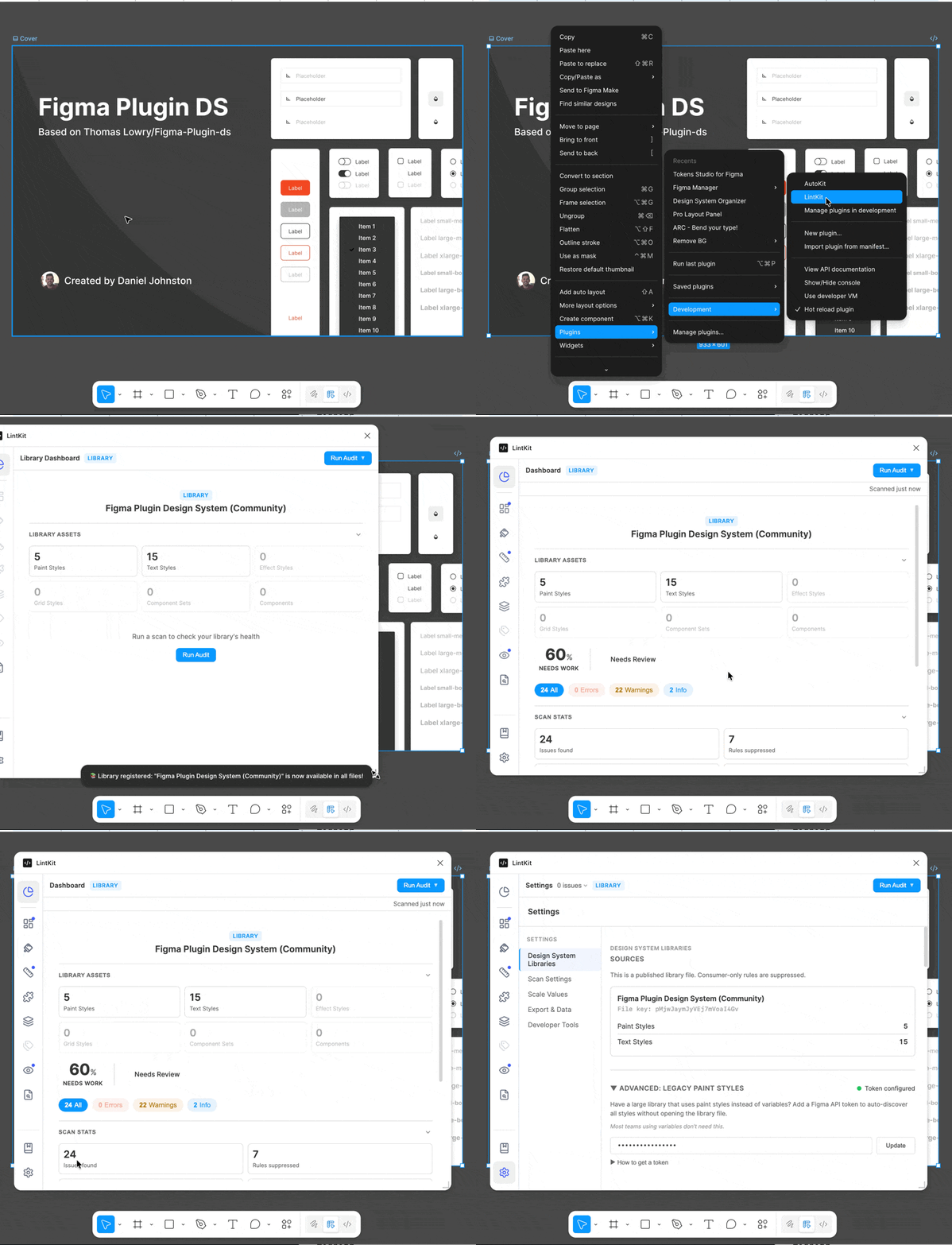
How detection works
LintKit checks whether your file is a published library at startup by calling Figma’sgetPublishStatusAsync() on your local styles. This API returns CURRENT or CHANGED only inside the actual library file — in a consumer file that uses the library, it returns UNPUBLISHED.
No setup is required. If you have at least one local style with a CURRENT or CHANGED publish status, LintKit activates library mode automatically.
Detection runs once when the plugin opens. If you publish a library for the first time while LintKit is already open, close and reopen the plugin to trigger detection.
Library dashboard
When library mode activates, LintKit navigates to a specialized Library Dashboard instead of the standard overview. The dashboard shows:- A Library badge in the header confirming you’re in library mode
- An asset inventory — counts of your paint styles, text styles, effect styles, grid styles, component sets, and components
- A Run Audit button to start a library-focused scan
- Your compliance score and handoff status (same metrics as the standard dashboard)
- Severity breakdown — clickable error, warning, and info counts to filter findings
- Scan stats — issues found, rules suppressed, scan time, and nodes scanned
- A suppressed rules notice showing how many consumer-only rules were skipped
Rules suppressed in library mode
These rules are designed for consumer files and produce misleading results inside a library file. LintKit suppresses them automatically:
The suppressed rules count reflects only the rules you had enabled. If you had already disabled orphaned grids, it won’t be counted in the suppressed total.
Library-only rules
These rules only produce findings inside a library file. In consumer files they silently return zero results.Unused styles
Scans the current page for local paint, text, effect, and grid styles that have zero usages. Helps library authors identify styles that can be deprecated or removed.- Severity: info
- Fix: Delete the unused style (with confirmation)
Missing descriptions
Checks all local styles, components, and component sets for empty or missing descriptions. Descriptions appear in Figma’s component/style picker and help consumers understand what each asset is for.- Severity: info
- Fix: Auto-generates a description based on the asset’s name and type
Variable completeness
Audits all local variable collections for three issues:
This rule is especially valuable for multi-mode libraries (light/dark, brand themes) where incomplete variable coverage causes silent fallbacks for consumers.
Hidden components
Finds components and component sets whose names start with. or _. These prefixes hide the component from Figma’s publishing and sharing. This is an inventory rule — it reports hidden components so you can confirm they are intentionally hidden.
- Severity: info
- No auto-fix — this is informational only
Reframed finding messages
Rules that run in both modes reframe their messages to use library-author language. For example:
This reframing helps library authors think about the downstream impact on consumers.
Sources panel
The Sources panel (in Settings) manages the external data sources LintKit uses for color matching and style comparisons. While not exclusive to library mode, it is closely related to library governance.Figma libraries
Shows libraries you’ve explicitly registered. Each library row displays its name, color count, and an enabled/disabled toggle. You can:- Toggle a library on or off for color matching
- Remove a library — this fully purges it until you add it again
- Add by URL by pasting any Figma file URL (
/file/,/design/, or/library/URLs)
Tokens Studio
Connect your Tokens Studio project to auto-configure spacing, radii, and color rules from your token definitions. Two connection methods:- Connect via API — paste your project URL and API key
- Detect from file — checks Figma’s shared plugin data for an existing Tokens Studio connection
GitHub
Connect a GitHub repository containing token files (JSON format). Paste the raw file URL and an optional personal access token for private repos. See GitHub integration for full setup.When offline, cached and explicitly registered libraries remain available. An offline banner appears in the Sources panel — reconnect and refresh to update library data.