

The
brokenVariables rule always runs and cannot be toggled off — broken variable references are too dangerous to ignore.Understanding severity levels
Every finding LintKit reports is assigned one of three severity levels. These levels determine sort order, dashboard impact, and handoff readiness.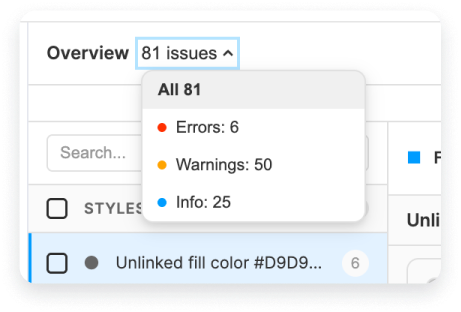
What “library-only” means
Some rules are marked library-only in the table below. These rules only produce findings when you scan a file that is published as a Figma library. They detect problems that only matter to library maintainers — unused styles, hidden components, missing descriptions, and incomplete variables. If you scan a regular design file, library-only rules silently return zero findings. You do not need to disable them manually. See Library mode for full details on how LintKit adapts when it detects a library file.Fix confidence
Every finding includes a confidence level that tells you how safe the suggested fix is. This determines whether LintKit shows a one-click Apply Fix button or provides manual instructions instead.Bulk fix (Pro) processes all findings in a category at once. It only applies high-confidence fixes automatically and skips low-confidence findings.
Rule categories
Styles
Orphaned fills, text, strokes, effects, grids. Plus duplicate and unused style detection.
Layout and positioning
Spacing scale, corner radii, stroke weight, fractional pixels, auto-layout suggestions, grid alignment, absolute positioning.
Cleanup and structure
Hidden layers, empty frames, single-child groups, default names, forbidden patterns.
Components and libraries
Unapproved libraries, broken instances, deep nesting, hidden components, missing descriptions.
Accessibility
WCAG contrast checking, broken variable references, variable completeness.
Full rule table
Rules marked library-only only produce findings when you scan a published library file.
Where to start
Different teams have different priorities. Here is a recommended order for enabling rules based on your role.Product design teams (shipping features)
Product design teams (shipping features)
Start with rules that catch handoff problems:
- Orphaned fills, text, strokes — the most common findings. These catch layers disconnected from your design system.
- Contrast — catches accessibility violations before code review.
- Cleanup — removes hidden layers and empty containers that confuse developers.
- Fractional pixels — prevents blurry rendering in production.
- Layer naming — stops “Frame 47” and “Rectangle copy 3” from reaching dev handoff.
Design system teams (maintaining libraries)
Design system teams (maintaining libraries)
Start with library health rules:
- Unused styles — find styles no one is using so you can deprecate them.
- Duplicate styles — consolidate near-identical styles cluttering your library.
- Variable completeness — catch missing mode values and broken aliases before consumers hit them.
- Hidden components — check which components are hidden from publishing.
- Missing descriptions — ensure every style and component is documented for consumers.
- Nested components — identify performance bottlenecks from deep nesting.
approvedLibraryKeys to enforce library governance across your org.Individual designers (personal quality)
Individual designers (personal quality)
Start with rules that are enabled by default and require no configuration:
- Cleanup — instant wins. Remove hidden layers, empty groups, and single-child wrappers.
- Orphaned fills and text — connect everything to styles.
- Fractional pixels — snap everything to the pixel grid.
- Auto layout suggestions — find frames that should use auto layout.
- Layer naming — rename “Frame 1” before anyone sees your file.
Findings and fixes
Every finding includes:- A severity level —
info,warn, orerror - Affected nodes — click to select them on the canvas
- A suggested fix — apply it with one click, or bulk-fix all instances (Pro)