

Cleanup
Default: On | Severity:info
A multi-check rule that detects four types of structural clutter. Each sub-check targets a different kind of leftover that accumulates during normal design work.
What it detects
- Empty groups
- Empty frames
- Single-child groups
When to enable it
Keep this rule on (it is the default) for all production files. It catches low-effort cleanup opportunities that improve file quality immediately. Disable only for rough exploration files where structure does not matter yet.How to fix all cleanup findings at once
1
Run a scan
Open LintKit and run a scan. Cleanup findings appear in the Structure tab.
2
Review the findings
Click through each finding to verify nothing is hidden or empty intentionally. Pay special attention to hidden layers that might be variant states.
3
Bulk fix
Use bulk fix (Pro) to apply all cleanup fixes at once, or fix findings individually by clicking Apply Fix on each one.
4
Re-scan
Run another scan to confirm all cleanup findings are resolved. Fixing some findings (like ungrouping a single-child group) can reveal new findings.
Layer Naming
Default: On | Severity:info
Detects layers with default auto-generated names (like Frame 1 or Rectangle 47) and naming convention violations. This rule uses a two-phase detection system that first catches generic names, then detects your team’s naming convention and flags deviations from it.
What it detects
Layer naming catches two broad categories of problems:- Generic default names — Figma’s auto-generated names like
Frame 1,Rectangle 47,Group 3. These tell developers nothing about what the layer is. - Convention violations — If your file consistently uses
camelCasenaming, a layer namedhero-banner(kebab-case) is flagged as a deviation.
Phase 1: Pattern detection
LintKit ships with 28 built-in patterns organized into four categories:Default name patterns (21 patterns)
Default name patterns (21 patterns)
Matches Figma’s auto-generated names. These are the most common findings:
- Shape defaults:
Frame 1,Rectangle 47,Ellipse 1,Line 1,Polygon 1,Star 1,Vector 1 - Container defaults:
Group 3,Section 1 - Content defaults:
Text 1,Image 1 - Component defaults:
Component 1,Instance 1 - Other defaults:
Slice 1,Connector 1,Stamp 1,Sticky 1,Widget 1,Highlight 1,Shape with Text 1 - Boolean operation defaults:
Union,Subtract,Intersect,Exclude
Default name Frame 47 — 23 layers use Figma’s auto-generated names. Consider renaming to describe their purpose.
Copy and duplicate patterns (2 patterns)
Copy and duplicate patterns (2 patterns)
- Copy suffix (enabled by default) — flags names like
Button_copy,Card copy 2,Header Copy - Numbered suffix (disabled by default) — flags names like
Button 2,Card 3. This is disabled because numbering may be intentional in certain contexts.
Copy suffix Card copy 2 — 5 layers appear to be duplicates with copy suffixes. Consider renaming them.
Placeholder patterns (2 patterns)
Placeholder patterns (2 patterns)
- Temp names — flags
temp,tmp,test,TODO,FIXME,untitled,asdf, and similar placeholder text - Placeholder prefix — flags
WIP Button,DRAFT Header,DELETE Card,REMOVE Section,OLD Footer
Placeholder name TODO fix this layout — 3 layers have temporary names that should be cleaned up before handoff.
Ignore patterns (3 patterns)
Ignore patterns (3 patterns)
Layers matching these patterns are excluded from all naming checks:
- Dot prefix (
.layerName) — intentionally hidden layers (enabled by default) - Underscore prefix (
_layerName) — internal/private layers (disabled by default) - Hash prefix (
#layerName) — metadata layers (disabled by default)
Phase 2: Convention detection
When LintKit collects at least 5 naming samples with 70% or higher confidence, it detects the prevailing naming convention in your file. Supported conventions includecamelCase, PascalCase, kebab-case, snake_case, and others.
Once a convention is detected, any layer name that deviates is flagged. For example, if 80% of your layers use PascalCase, a layer named hero-banner (kebab-case) would be flagged.
Severity tiers
Layer naming severity scales based on where the layer sits in the hierarchy. Deeper, less important layers get lower severity:
Example: A component named
Component 1 is tier 1 (error), while a deeply nested group named Group 3 is tier 3 (info).
How to fix findings
1
Start with tier 1 findings
Focus on top-level frames, sections, and components first. These are the names that appear in navigation and dev tools.
2
Rename with intent
Choose names that describe what the layer is or does. Follow your team’s naming convention. For example:
LintKit’s batch rename feature lets you rename multiple layers at once. Select multiple findings and apply a naming pattern to fix them in bulk.
3
Fix single-child groups
If a naming finding also flags a single-child group, consider flattening it instead of just renaming it. Click Apply Fix to flatten the group.
Batch Rename
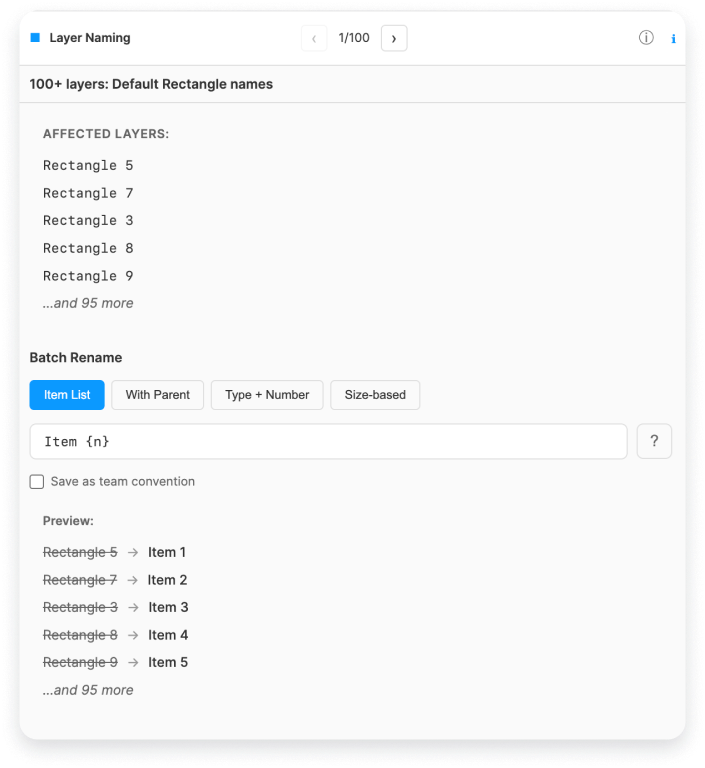
When a Layer Naming finding is open, LintKit shows a Batch Rename panel at the bottom of the inspector. Instead of renaming layers one by one, you pick a mode, type a pattern, and preview the result before applying it to every affected layer at once.How it works
- Open a Layer Naming finding in the results panel
- The Batch Rename panel appears below the affected layers list
- Choose a rename mode (see below)
- Type a pattern — the Preview section updates live
- Click Apply to rename all affected layers
Rename modes
Item List
Write your own pattern using tokens (see Pattern tokens). LintKit renames each layer using that pattern, with{n} counting up from 1 in layer-panel order (top to bottom).
Best for: Repeated sibling layers — pricing cards, feature rows, onboarding steps, testimonials, nav items.
With Parent
Automatically prefixes each layer’s name with its parent frame name. Pattern is{parent} {type} — you can’t edit it in this mode.
Best for: Nested elements that lose context when viewed in isolation — icon slots, column headers, tab panel contents.
Type + Number
Replaces Figma’s noisy auto-generated numbers (Frame 203) with a clean sequential counter starting at 1 (Frame 1). Same shape, intentional numbering.
Best for: Mid-fidelity files that aren’t ready for semantic naming yet. Clears the lint warning without committing to a final name.
Size-based
Renames each layer to its pixel dimensions in{w}×{h} format.
Best for: Responsive breakpoint frames, icon size variants, device artboard collections.
Pattern tokens
Use these inside any Item List pattern:
Tokens are case-sensitive —
{N} and {n} produce different results.
Pattern examples
Copy any pattern directly into the text field.Screens and artboards
These appear in prototype flows and Figma’s page navigation — giving them clear names has the highest impact on handoff quality.-
Numbered screen variants
Frame 47,Frame 12,Frame 203→Screen 01,Screen 02,Screen 03 -
Checkout flow steps
Frame 3,Frame 7,Frame 9→Checkout / Step 1,Checkout / Step 2,Checkout / Step 3 -
Responsive breakpoints
Frame 1,Frame 2,Frame 3→375px breakpoint,768px breakpoint,1440px breakpoint -
Feature flag variants
Frame 1,Frame 2→Dashboard / Variant 01,Dashboard / Variant 02
Marketing and landing page sections
-
Generic page sections
Frame 1,Frame 2,Frame 3→Section 1,Section 2,Section 3 -
Feature highlight rows
Group 3,Group 5,Group 7→Feature 1,Feature 2,Feature 3 -
Testimonial cards
Rectangle 5,Rectangle 7,Rectangle 3→Testimonial 1,Testimonial 2,Testimonial 3 -
FAQ accordion items
Group 1,Group 2,Group 3→FAQ item 1,FAQ item 2,FAQ item 3 -
Pricing tier cards
Frame 4,Frame 5,Frame 6→Pricing / Tier 1,Pricing / Tier 2,Pricing / Tier 3
Navigation and UI structure
-
Navigation menu items
Group 1,Group 2,Group 3,Group 4→Nav item 1,Nav item 2,Nav item 3,Nav item 4 -
Sidebar links
Frame 2,Frame 5,Frame 8→Sidebar link 1,Sidebar link 2,Sidebar link 3 -
Breadcrumb steps
Group 9,Group 10,Group 11→Breadcrumb 1,Breadcrumb 2,Breadcrumb 3 -
Tab items
Frame 1,Frame 2,Frame 3→Tab 1,Tab 2,Tab 3
Data tables and lists
-
Table rows
Frame 1throughFrame 100→Row 1throughRow 100 -
Table columns
Group 1,Group 2,Group 3,Group 4→Column 1,Column 2,Column 3,Column 4 -
List items (generic)
Frame 3,Frame 7,Frame 11→List item 1,List item 2,List item 3 -
Activity feed entries
Group 4,Group 5,Group 6→Feed item 1,Feed item 2,Feed item 3
Onboarding and flows
-
Onboarding steps
Frame 1,Frame 2,Frame 3,Frame 4→Onboarding / Step 1,Onboarding / Step 2,Onboarding / Step 3,Onboarding / Step 4 -
Modal steps (multi-step forms)
Frame 2,Frame 5,Frame 8→Modal / Step 01,Modal / Step 02,Modal / Step 03 -
Empty state illustrations
Group 1,Group 2→Empty state 1,Empty state 2
Utility layers
-
Decorative or structural layers that repeat
All selected layers →
Divider(identical name is fine — LintKit only flags default names likeRectangle 3, not intentional repeated names) -
Background fills
Rectangle 47,Rectangle 12→Background,Background -
Spacer elements
Frame 1,Frame 2→Spacer 1,Spacer 2
Icon sizing variants (Size-based mode)
Switch to Size-based mode — no pattern needed.Frame 1(16×16) →16×16Frame 2(24×24) →24×24Frame 3(32×32) →32×32Frame 4(48×48) →48×48
Tips
Configuration
Edge cases
Layer filter behavior
Layer filter behavior
- Naming checks respect your layer filters: hidden and locked layers are skipped if
layerFilters.includeHiddenLayersandlayerFilters.includeLockedLayersare set to false (the default). - Layers inside component instances are skipped by default — rename the source component instead.
- The maximum is 100 nodes per finding to keep the findings panel manageable.