

Install the plugin
1
Open Figma
Open the Figma desktop app or web app and open any design file.
2
Install LintKit
Go to Plugins > Community, search for LintKit, and click Install.Or open the LintKit plugin listing directly.
3
Run the plugin
Right-click the canvas, select Plugins > LintKit, or go to Plugins > LintKit > Open LintKit from the menu bar.
First-run setup
The first time you open LintKit, a short setup wizard walks you through connecting your Figma account and detecting your libraries. You can skip everything and come back later — all 27 detection rules work without any setup.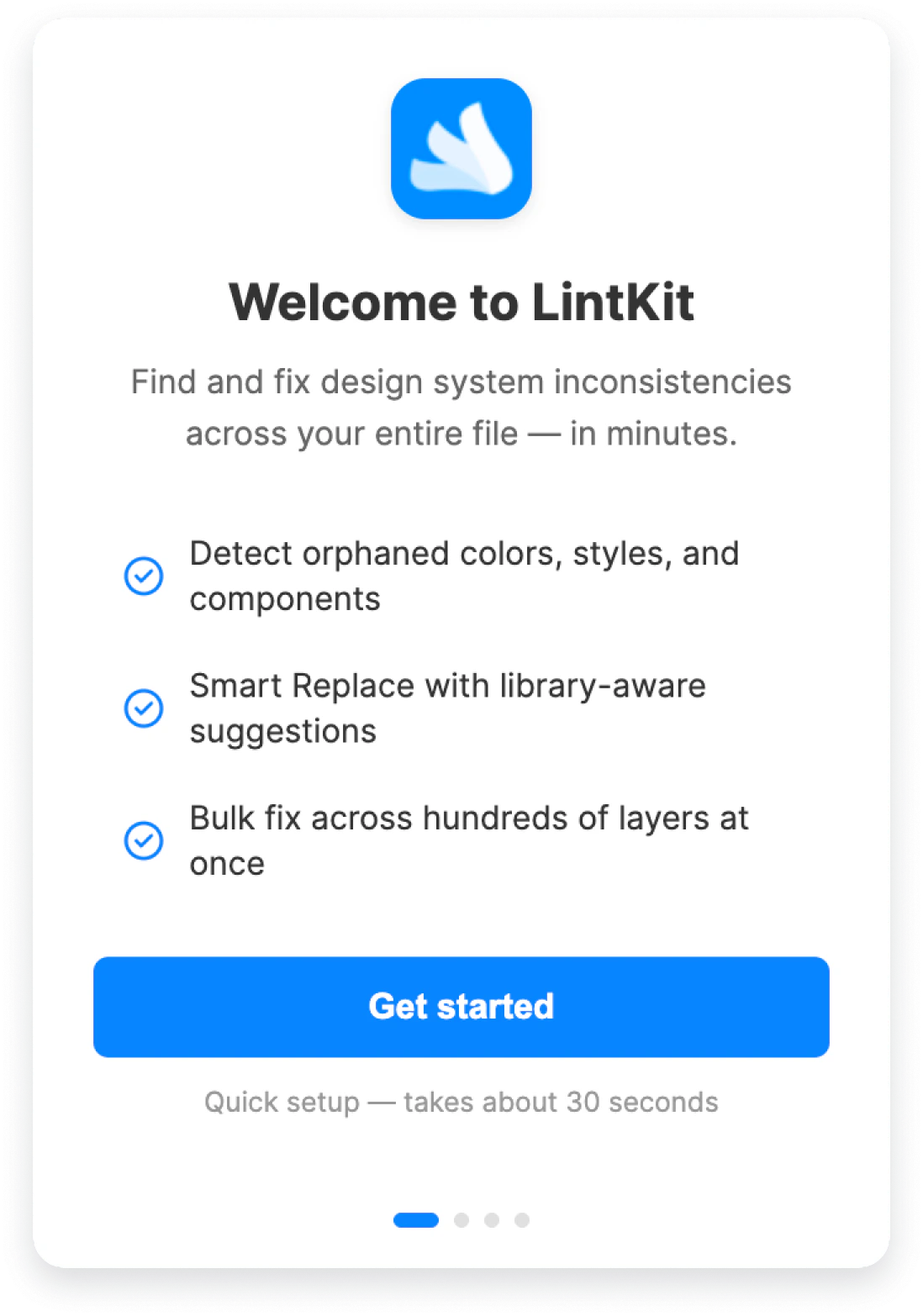
Connect your Figma token (Step 1 of 2)
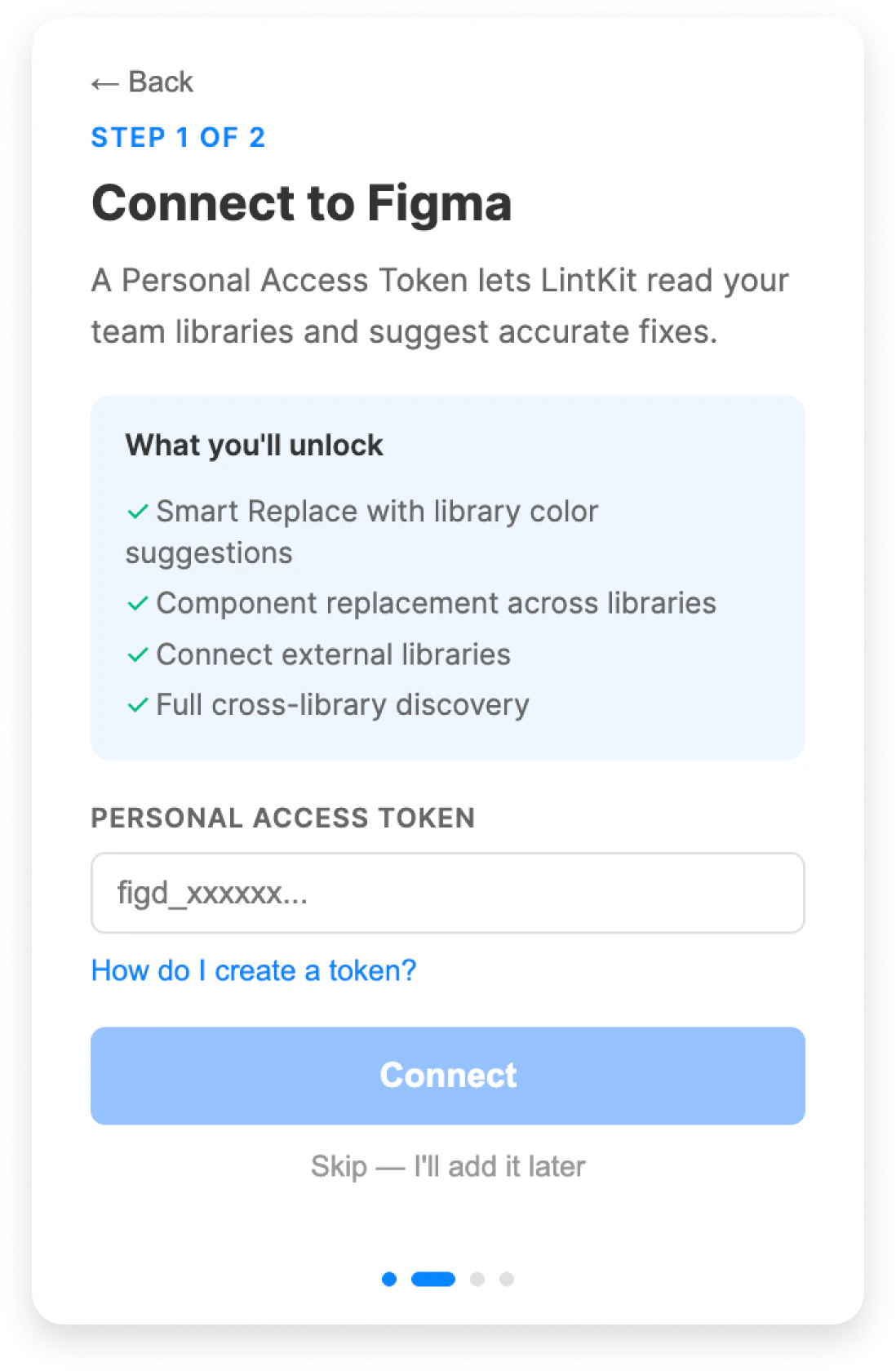
- Smart Replace suggestions that match orphaned styles to your library
- Component replacement across libraries
- Cross-library discovery for deeper style matching
- External library URLs (paste a library file link to load it)
How to create a token
Click “How do I create a token?” in the wizard to see step-by-step instructions. Here’s what the LintKit helper and the Figma token screen look like side by side: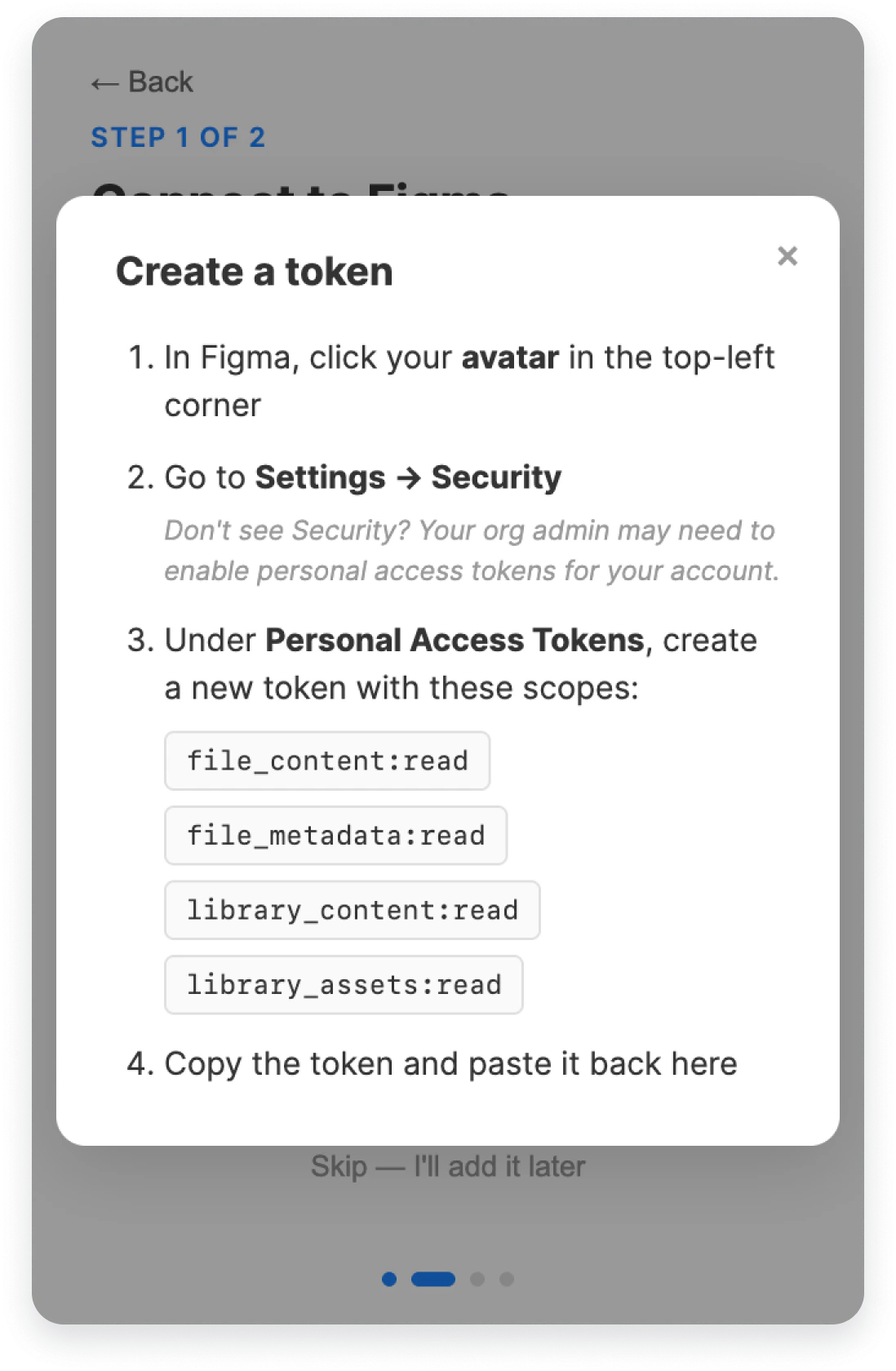
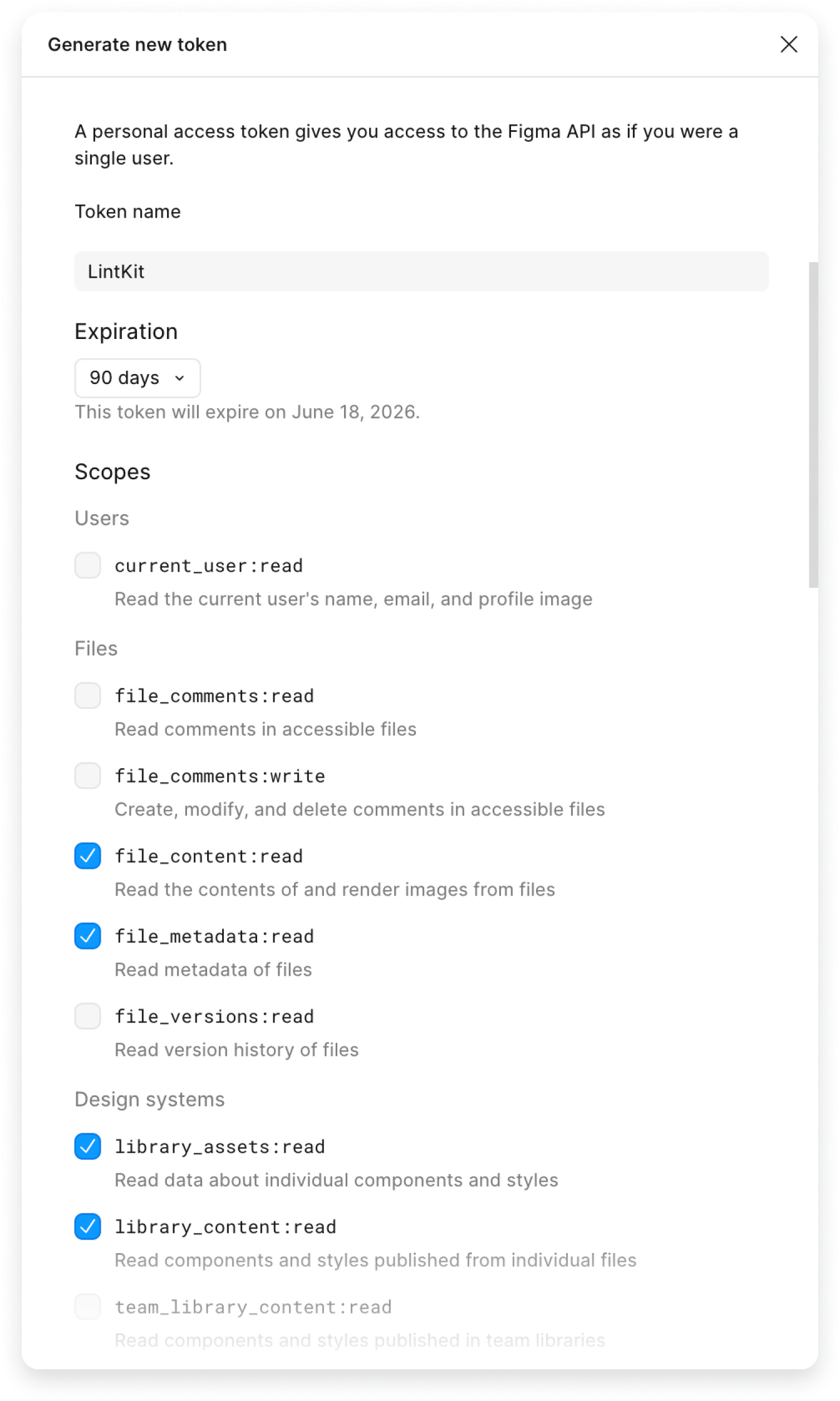
Figma doesn’t allow editing scopes on an existing token. If you’re missing a scope, you’ll need to create a new token with all four.
Your libraries (Step 2 of 2)
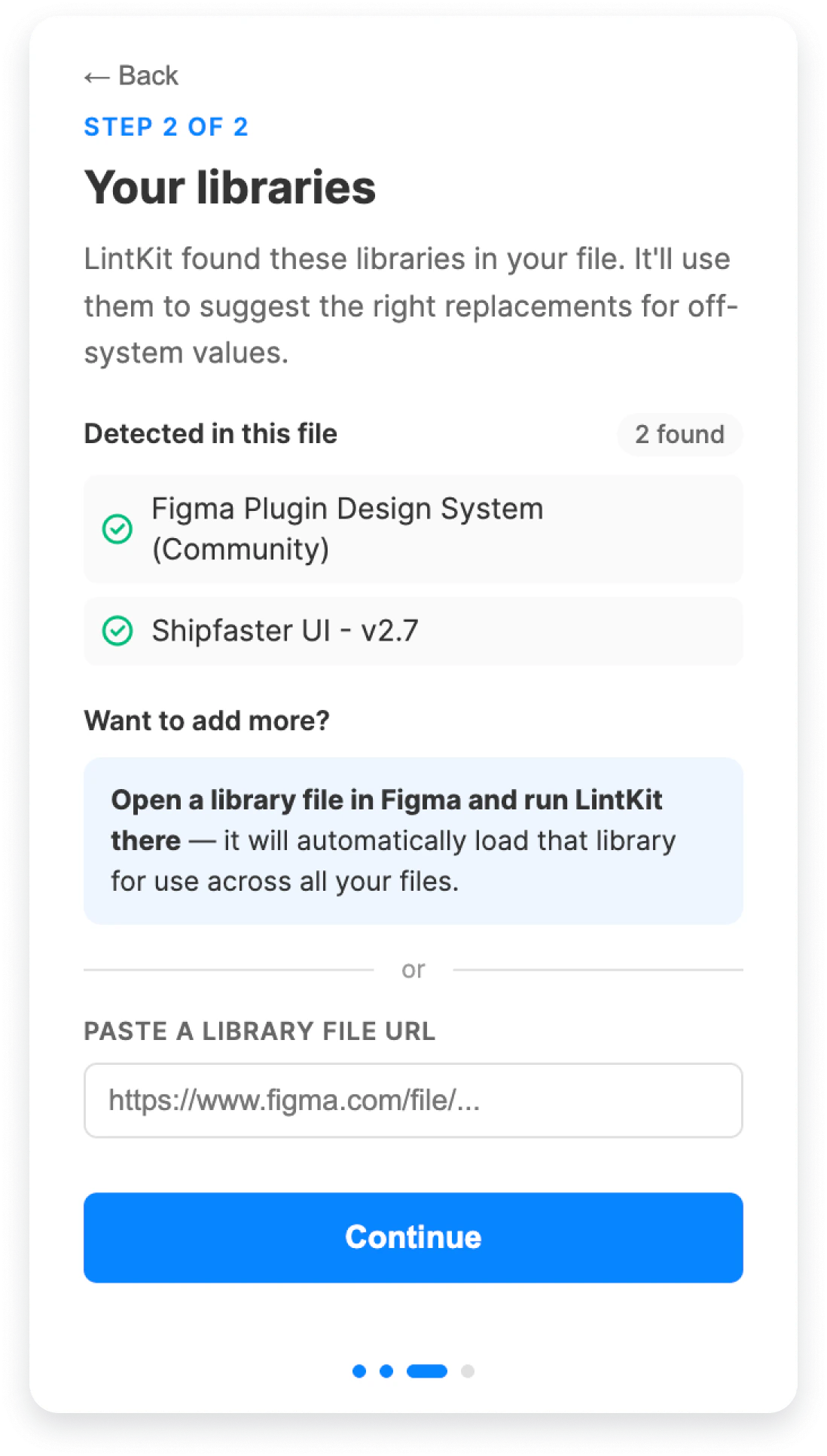
- Open a library file in Figma and run LintKit there. LintKit registers that library automatically for all your files — no token needed.
- Paste a library file URL. Enter the URL in the input field and LintKit pulls in that library’s styles and components. This requires a connected token (the input is disabled without one).
Using a component from a library in your working file is not enough to register that library. You must add it by URL or run LintKit inside the library file.
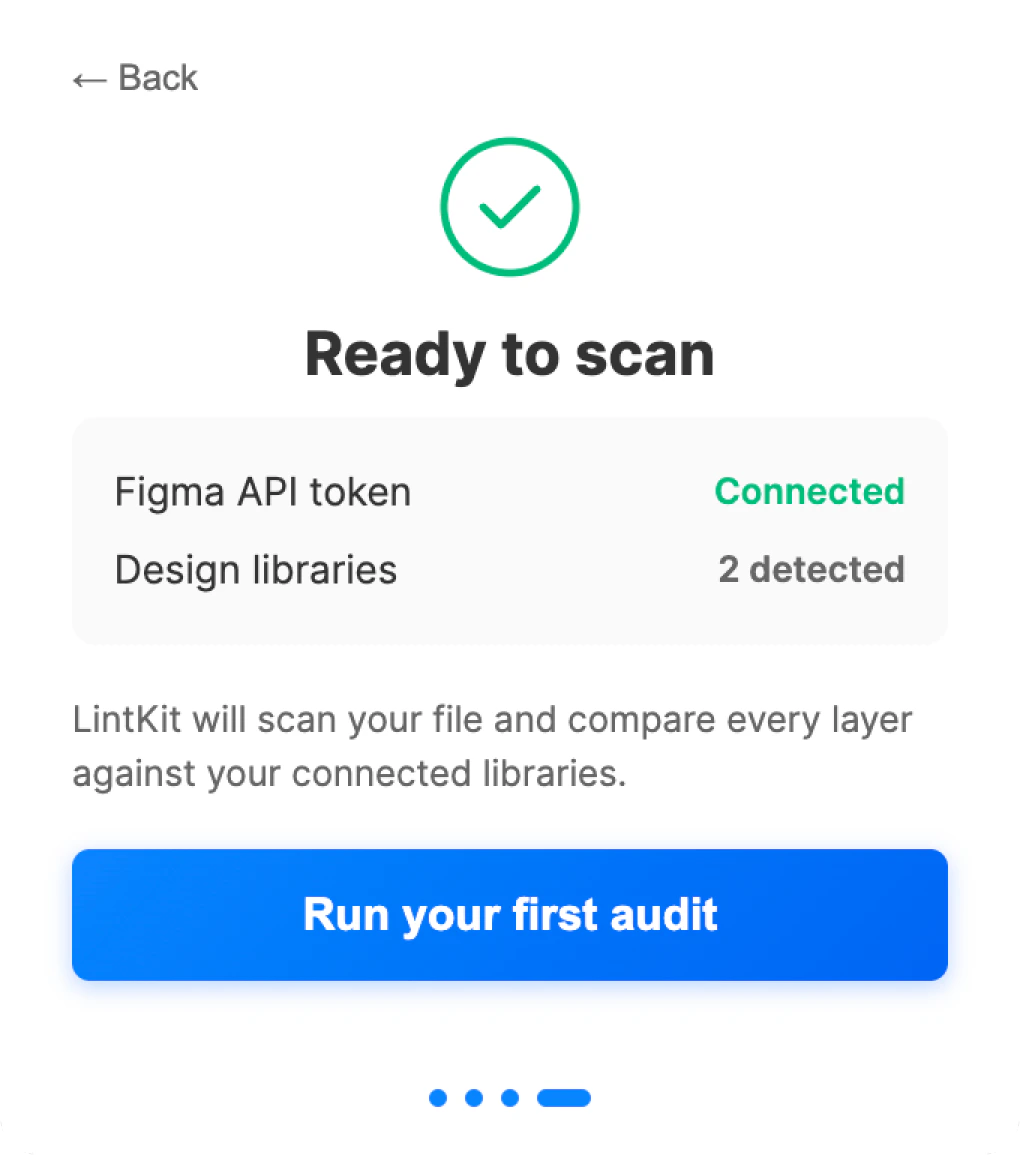
Ready to scan
Understand the plugin layout
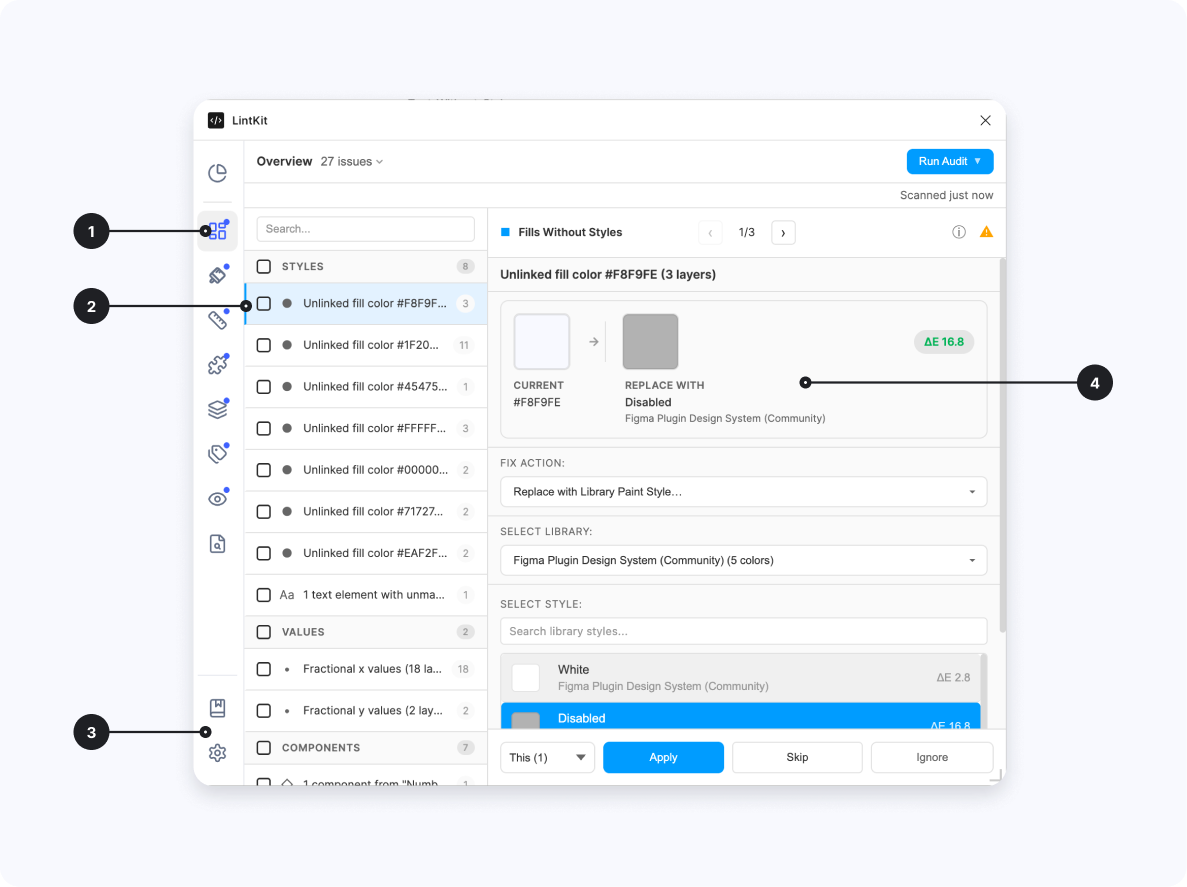
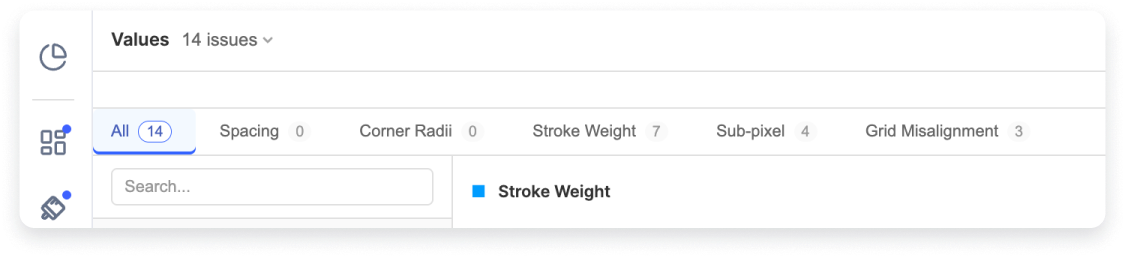
- Left Navigation Tabs — categories like Styles, Values, Components, Structure, Naming, and Accessibility. Click a tab to see findings for that category only.
- Findings list — each finding describes one inconsistency, grouped by rule. Click a finding to select the affected layers on the canvas.
- Settings and Docs — access rule configuration and documentation from the bottom of the navigation rail.
- Inspector Panel — when you click a finding, a detail panel opens on the right showing the finding summary, affected nodes, and available fixes.
Run your first scan
LintKit scans the current page automatically when it opens. You don’t need to click anything. After the scan completes, you see: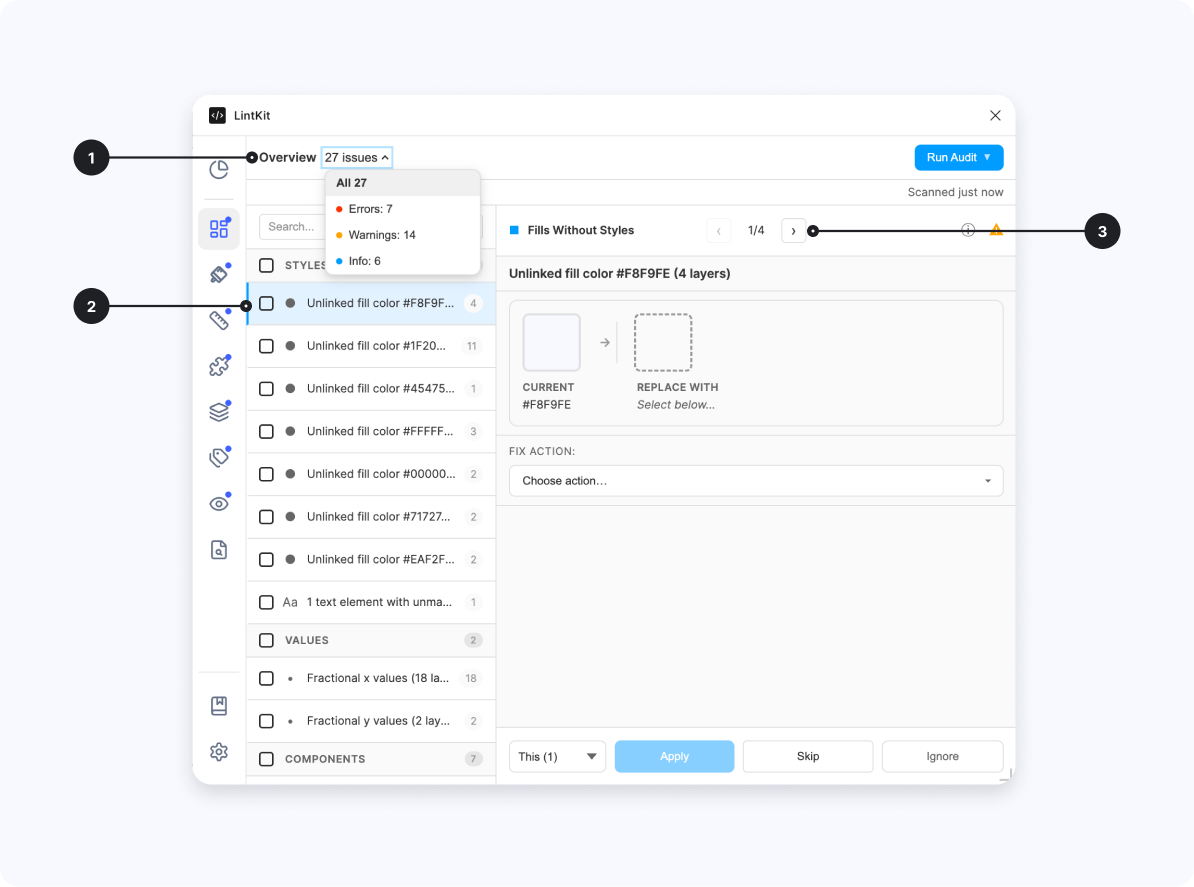
- Severity selector — filter findings by error (red), warning (yellow), or info (blue)
- Rule violation row — each finding describes one inconsistency, grouped by rule (e.g., “Fills without styles”)
- Node count per finding — shows how many layers are affected by each rule violation
LintKit scans the current page by default. Hidden and locked layers are skipped unless you enable them in configuration.
Scanning a selection
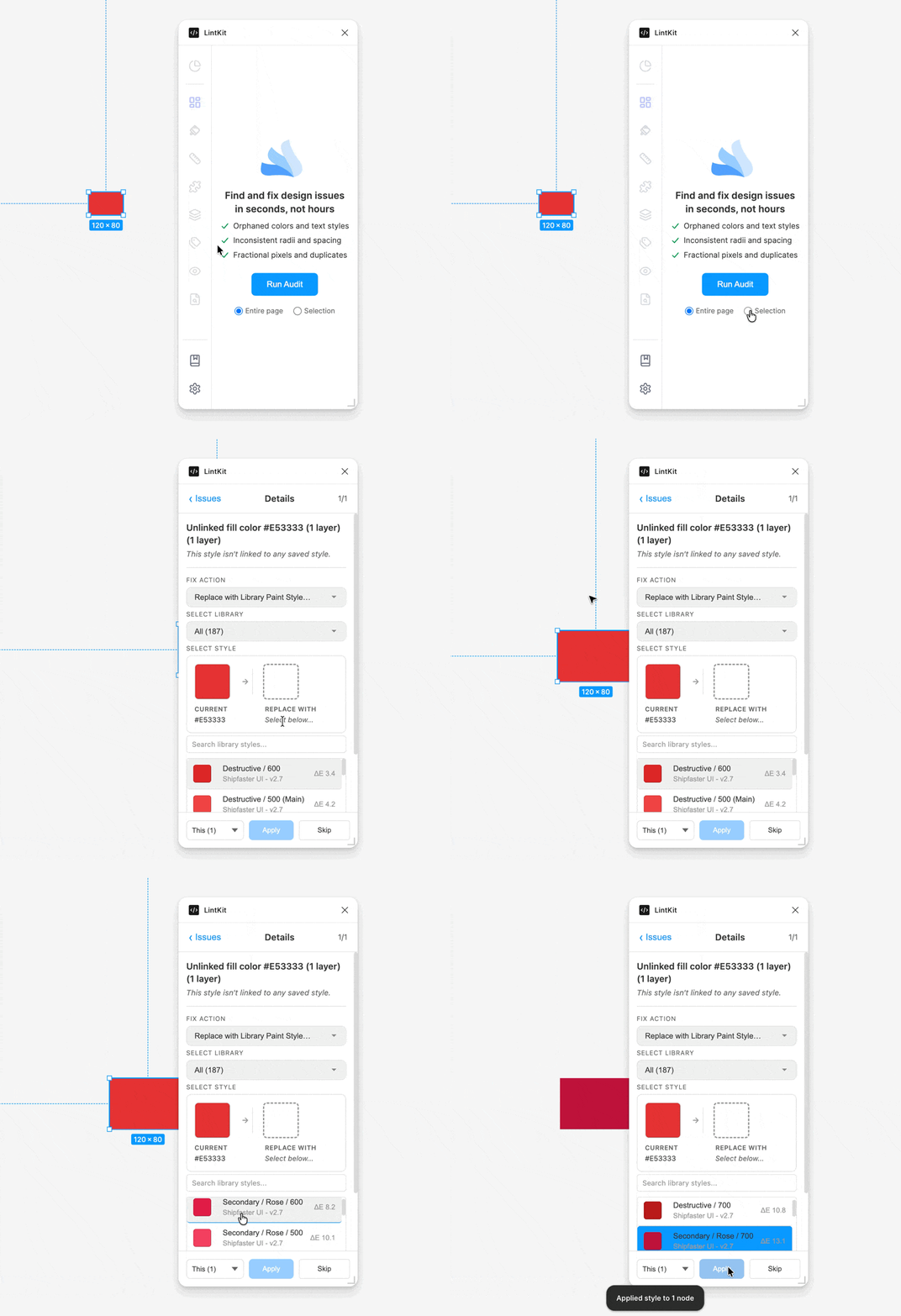
To scan only specific layers instead of the whole page:- Select one or more layers on the canvas
- LintKit automatically re-scans your selection
- Findings update to show only what’s relevant to the selected layers
Explore findings
Click any finding in the results list to:- Select the affected layers on the canvas — LintKit highlights them so you can see exactly where the problem is
- Open the inspector — a detail panel showing the finding’s summary, affected node count, and available fixes
- Navigate between nodes — if the finding affects multiple layers, click individual nodes in the inspector to jump between them
Fix a finding
Once you’ve selected a finding, the inspector shows your fix options: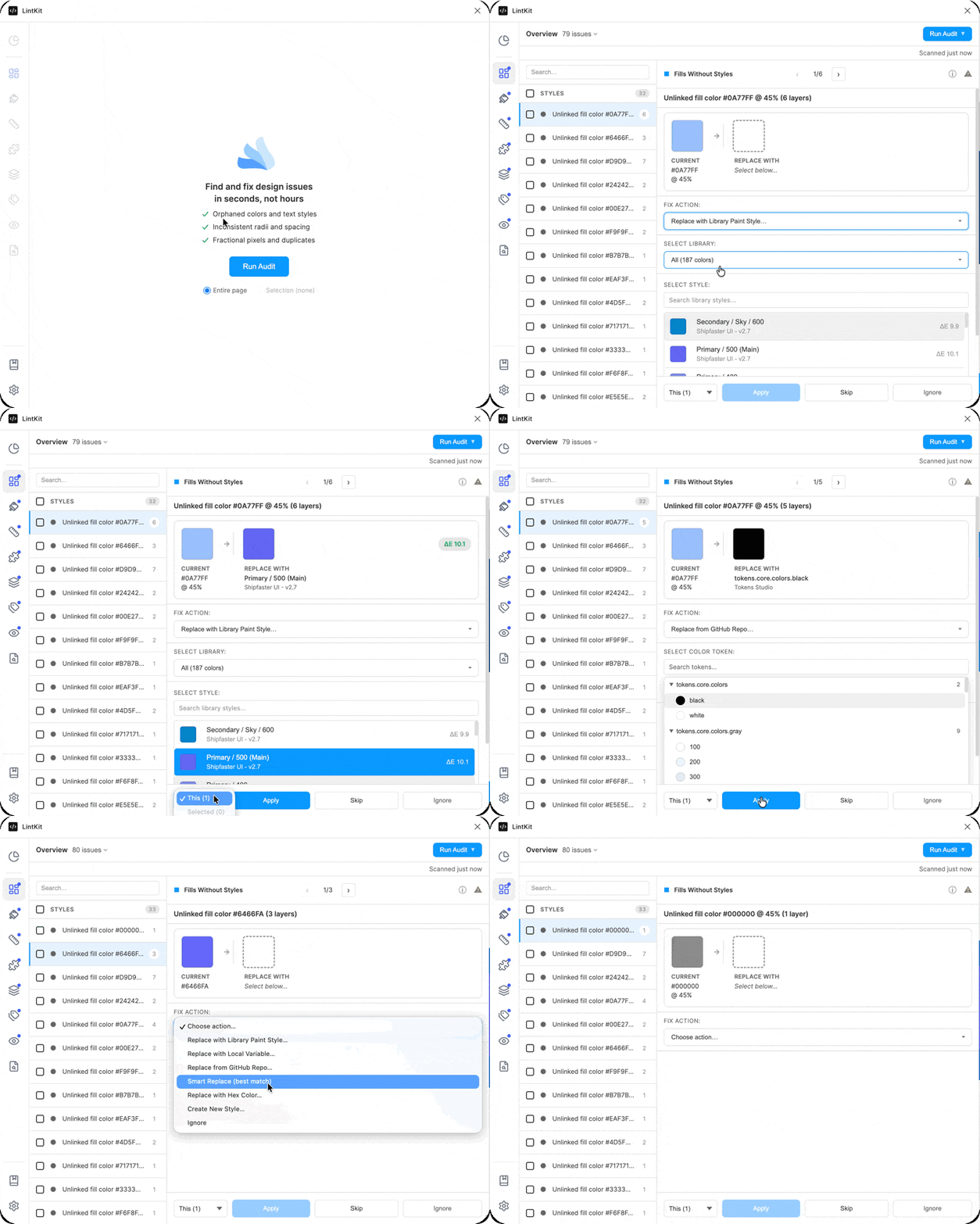
1
Review the suggested fix
Most findings include a primary suggested fix. For example, an orphaned fill might suggest “Map to Primary/Blue” — the closest matching style in your file.Some findings offer multiple fix options. For example, an orphaned fill might let you map to a style, bind to a variable, or create a new style.
2
Choose the scope
Apply the fix to:
- This instance — fix just the selected node
- All in this finding — fix every node grouped under this finding
3
Apply the fix
Click the fix button. LintKit applies the change and removes the finding from the results.Every fix is a separate undo step in Figma. Press Ctrl+Z (or Cmd+Z on Mac) to undo immediately.
Fix confidence
Not all findings can be auto-fixed with equal safety. LintKit shows a confidence level: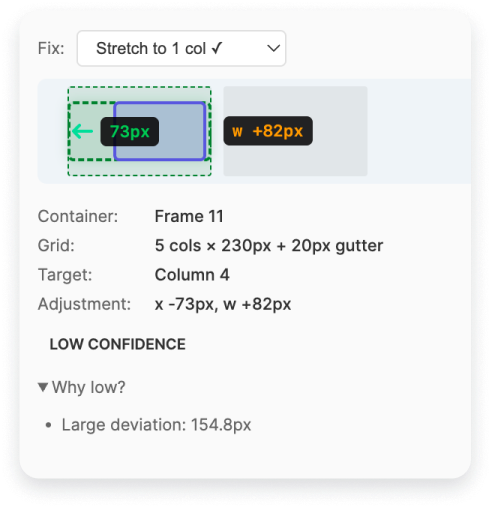
Ignoring findings
If a finding is intentional (for example, a one-off spacing exception), click Ignore to dismiss it. Ignored findings:- Persist across scans
- Can be scoped to the file (everyone sees it ignored) or just you (personal), depending on your configuration
- Can be shown as dimmed results if you enable Show ignored in results in settings
Configure for your team
The default settings work well for general use. For tighter enforcement, configure LintKit to match your design system:1
Open settings
Click the Settings tab in the plugin’s navigation.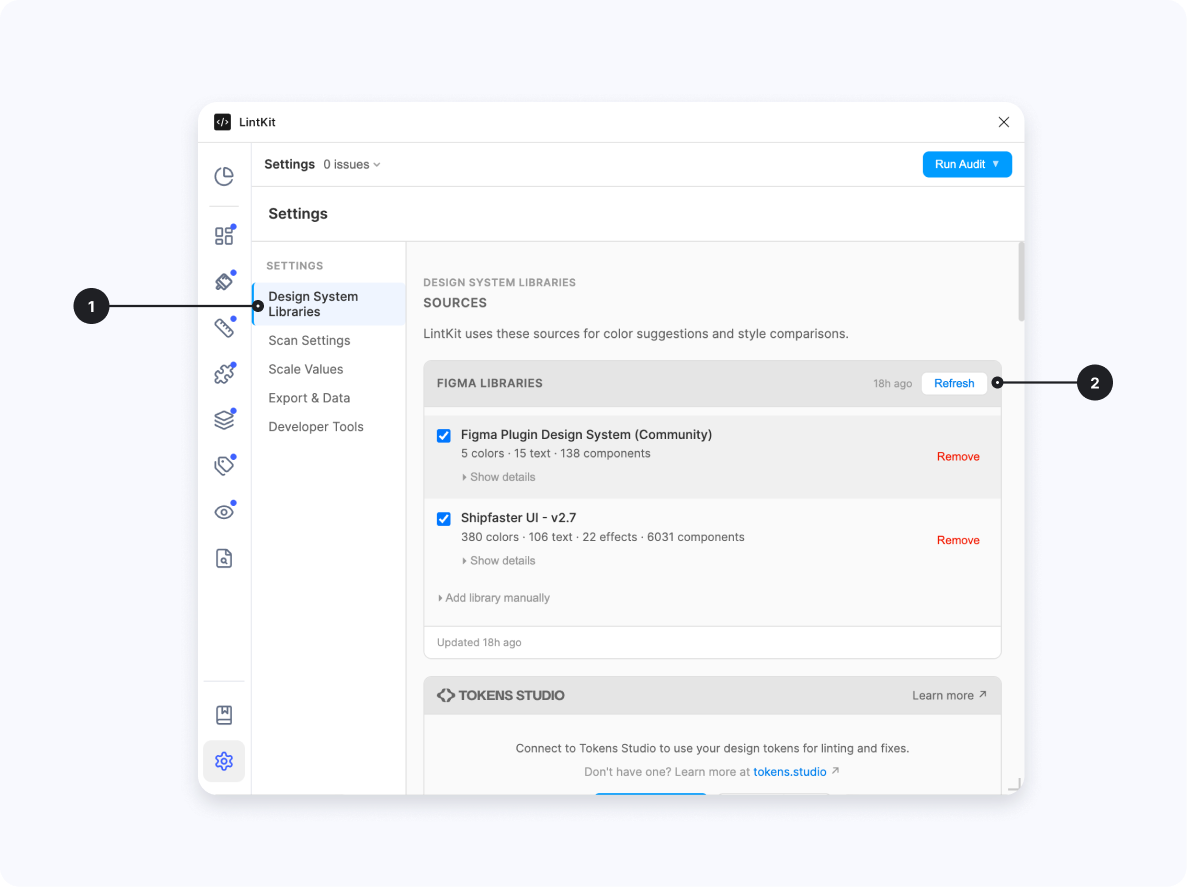
- Settings tabs — switch between rule configuration, integrations, and other options
- External library manager — manage which design libraries LintKit uses for color matching and style suggestions
Library loading can take a minute for large libraries with many styles and components.
2
Set your spacing scale
If your team uses an 8px spacing grid, enter your allowed values (e.g.,
0, 4, 8, 16, 24, 32, 48, 64) and enable the Spacing Scale rule.3
Set your corner radii
Enter the corner radius values your design system uses (e.g.,
0, 4, 8, 16) and enable the Corner Radii rule.4
Connect your tokens (optional)
If your team uses Tokens Studio or stores tokens in GitHub, connect them in the Integrations section to auto-configure spacing, radii, and color rules. See Tokens Studio or GitHub for setup.
Category navigation
Compact view
LintKit adapts to narrow plugin windows with a compact layout that works on smaller screens.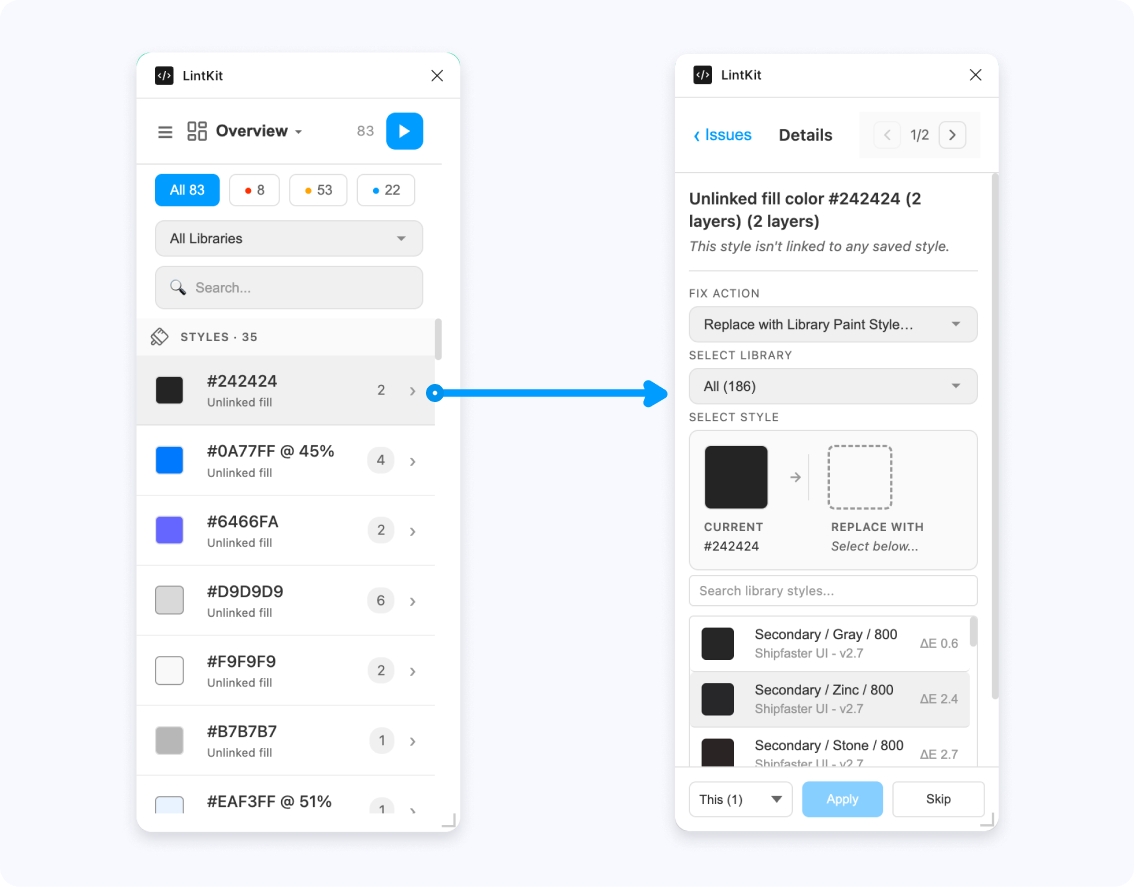
What’s next?
Browse all rules
See all 24 rules, what they check, and how to fix their findings.
Configure rules
Set up spacing scales, radii, color tolerances, and library governance.
Compliance dashboard
Understand your compliance score and handoff readiness.
Connect design tokens
Auto-configure rules from Tokens Studio or GitHub token files.