

How it activates
The layout switches based on the plugin window width:
A 20px buffer (hysteresis) prevents flickering when you resize near a boundary. For example, minimal mode activates below 500px but requires 520px to exit. This means the layout won’t rapidly toggle if you’re dragging the resize handle near the threshold.
Minimal layout
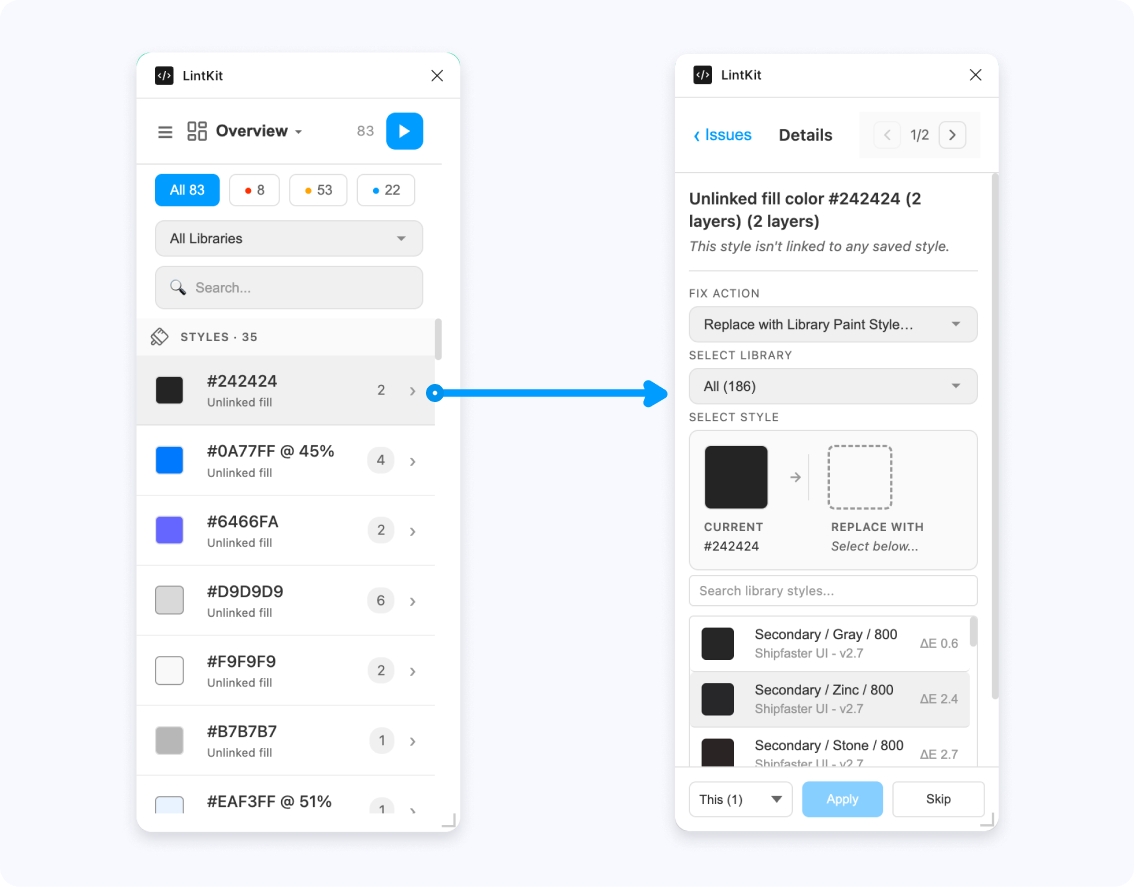
When the window is narrower than 500px, LintKit switches to a fully redesigned single-column interface.Navigation
The sidebar disappears entirely. Two navigation options replace it:- Title dropdown — tap the category name in the header to open a dropdown showing all categories with their icons. Select one to switch.
- Hamburger menu — tap the menu icon to open a slide-in drawer from the left (260px wide) showing all navigation items. Settings is pinned to the bottom.
Results list
The results list takes the full width of the plugin. It includes:- Severity filter pills — tap “All”, errors, warnings, or info to filter
- Sub-tab pills — scrollable horizontal tabs for categories that have sub-tabs (Fills, Strokes, Text, Effects, etc.)
- Search bar — filter findings by text
- Run button — a compact play button that opens a menu to scan the page or current selection
Inspector panel
Tapping a finding in the list slides the inspector in from the right, pushing the list off-screen to the left. The inspector shows:- A back button to return to the list
- Instance navigation — previous/next arrows with a counter (“3 of 12”) to step through affected nodes
- The full fix UI — the same fix widgets used in the wide layout (color pickers, style selectors, contrast tools, spacing previews)
- An action bar at the bottom with scope selector (“This” / “All”), Apply, and Skip buttons
If you have a finding selected in wide mode and then resize the window to narrow, the inspector opens immediately on that finding instead of showing the list.
Library mode in compact view
If library mode is active and no scan has run yet, the minimal layout shows a centered card with:- Your library name and asset counts
- A Run Audit button
What’s different in compact view
Most features work identically. These are the differences:Features that are identical
- All fix widgets (color pickers, style selectors, naming tools, contrast inspector, spacing previews)
- Find & Replace panel (receives a
narrowModeflag but the same component) - Settings panel (exact same component)
- Severity filtering and search
- Fix application and undo behavior
- Instance navigation within findings
- Library discovery and token integration
When to use compact view
Compact view is useful when you want to:- Keep LintKit open while working — dock it to the side of your canvas without giving up too much screen space
- Quick-fix on the go — scan, find an issue, fix it, go back to the list
- Work on smaller displays — laptops or secondary monitors where horizontal space is limited