> ## Documentation Index
> Fetch the complete documentation index at: https://docs.lintkit.com/llms.txt
> Use this file to discover all available pages before exploring further.
# Layout rules
> Enforce spacing, pixel precision, and layout consistency
Layout rules enforce the spatial discipline of your design system -- spacing, radii, alignment, and pixel precision. These rules catch the subtle inconsistencies that look fine at 100% zoom but cause problems in development and at different screen sizes.
## Spacing Scale
**Default:** Off | **Severity:** `warn`
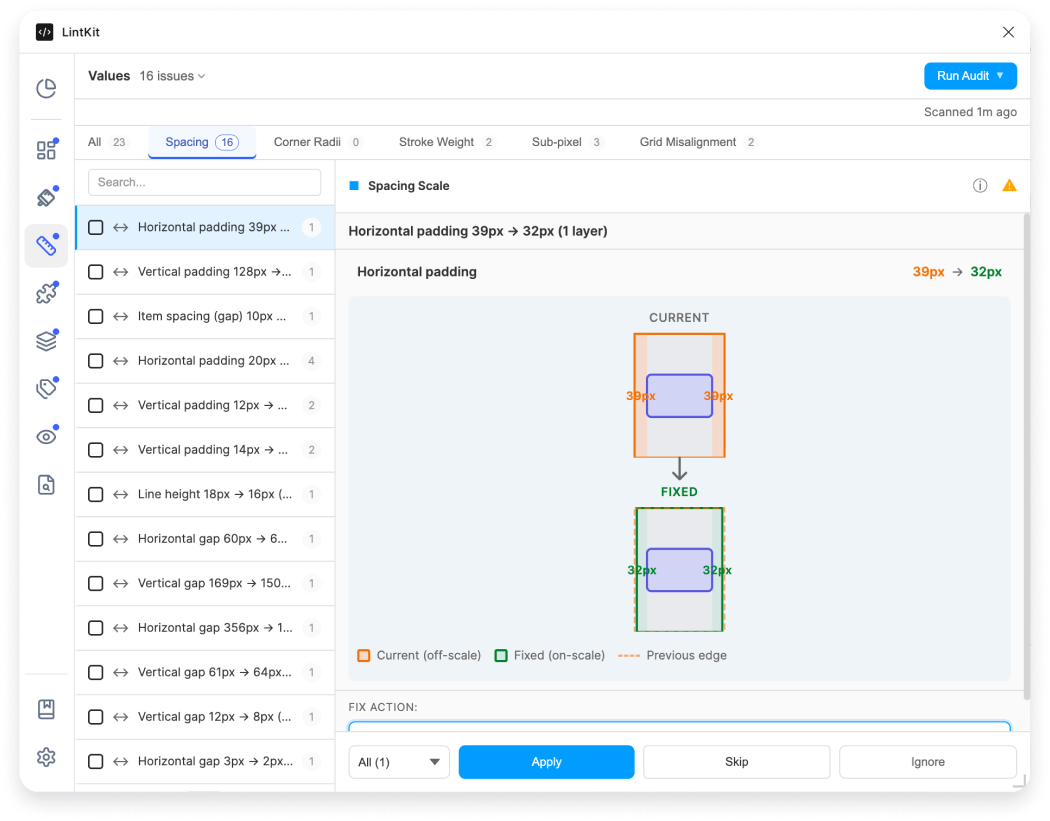
Checks padding, gaps, line height, and dimension values against your configured spacing scale. This rule is off by default because it requires you to define your `allowedSpacing` values first in **Settings**.
### What it detects
Any spacing value that does not appear in your allowed spacing scale. For example, if your scale is `[0, 4, 8, 12, 16, 24, 32, 48, 64]` and a frame has `13px` padding, LintKit flags it:
> **paddingLeft** is `13px` -- not on your spacing scale.
> Nearest allowed value: `12px`
 ### When to enable it
Enable this rule after you have defined your spacing scale in **Settings** by populating the `allowedSpacing` array. If you leave `allowedSpacing` empty, LintKit falls back to multiples of `baseSpacing` (default: `8`), but explicit values give you more control.
Disable if your file is in early exploration and spacing has not been finalized.
### The four sub-checks
The spacing scale rule runs four independent sub-checks. Each can be toggled separately, and each has a different confidence level that determines how fixes are applied.
**Config key:** `spacingChecks.autolayout` (default: `true`)
Checks `paddingLeft`, `paddingRight`, `paddingTop`, `paddingBottom`, `itemSpacing`, and `counterAxisSpacing` on frames that use auto layout.
**Example scenario:** You have a card component with `paddingLeft: 13px` and `paddingRight: 13px`. Both are off-scale and snap to the same target (`12px`). LintKit groups them into a single `paddingHorizontal` finding instead of reporting them separately.
**Example finding:**
> `paddingHorizontal` is `13px` on **Card/Default** -- not on spacing scale. Nearest: `12px`
**Fix confidence:** High. Auto-layout padding is a single-property snap that cannot break layout. Click **Apply Fix** to correct it instantly.
**Config key:** `spacingChecks.lineHeight` (default: `true`)
Checks line height on text nodes when the unit is **pixels only**. Percentage (`%`) and auto (`AUTO`) line heights are always considered valid and are never flagged.
**Example finding:**
> Line height `22px` on Body text -- not on spacing scale. Nearest: `24px`
Configure a separate scale with `allowedLineHeights`. Set it to `'inherit'` (the default) to reuse your `allowedSpacing` values, or provide a custom array like `[16, 20, 24, 28, 32, 40, 48]`.
**Fix confidence:** High. Line height changes are safe single-property snaps.
**Config key:** `spacingChecks.manualGaps` (default: `true`)
Measures horizontal and vertical gaps between consecutive children in frames that do **not** use auto layout. Flags gaps that fall outside your spacing scale.
**Example scenario:** You have a free-form layout with three cards spaced `11px`, `12px`, and `13px` apart vertically. LintKit flags the `11px` and `13px` gaps as off-scale.
**Example finding:**
> Manual vertical gap `11px` between layers in **Content Section** -- not on spacing scale. Nearest: `12px`.
> Fix requires moving layers. Select the parent frame to review.
**Fix confidence:** Low. There is no auto-fix button because correcting manual gaps requires moving layers, which could break spatial relationships with other elements. LintKit provides instructions instead:
* Select the affected nodes
* Select the parent frame
* Consider converting to auto layout
Rotated children (rotation > 0.1 degrees) are excluded from gap calculations.
**Config key:** `spacingChecks.dimensions` (default: `false`)
Checks `width` and `height` of all nodes against your spacing scale. This sub-check is **off by default** because dimension enforcement is aggressive -- most teams only care about padding and gap spacing.
**Example finding:**
> Width `157px` on **Avatar/Large** -- not on spacing scale. Nearest: `160px`
**Fix confidence:** Medium. Dimension changes can cause text clipping or overlap. The fix button is available, but review the result after applying.
**Excluded from checking:**
* Elements larger than `maxDimensionToCheck` (default: `200px`) -- hero images, full-width containers, and other large elements are unlikely to follow a spacing scale.
* Auto-sized frames (HUG/FILL) -- their size is determined by content, not explicit values.
* Rotated elements (when `skipRotatedDimensions` is enabled).
### Configuration
| Key | Default | Description | Use case for adjusting |
| --------------------- | ----------- | ----------------------------------------------------------- | ----------------------------------------------------------------------------------------------- |
| `allowedSpacing` | `[]` | Explicit list of allowed spacing values | Populate with your design system spacing tokens, e.g. `[0, 2, 4, 8, 12, 16, 24, 32, 48, 64]` |
| `baseSpacing` | `8` | Base spacing unit (used when `allowedSpacing` is empty) | Change to `4` for a 4px-based system |
| `spacingTolerance` | `0` | Pixel tolerance for matching (0 = exact match only) | Set to `1` to allow 1px tolerance on all checks |
| `allowedLineHeights` | `'inherit'` | Separate line height scale, or `'inherit'` to reuse spacing | Provide `[16, 20, 24, 28, 32, 40, 48]` if your line heights differ from spacing |
| `maxDimensionToCheck` | `200` | Skip dimension check for elements larger than this (px) | Increase to `400` if you want to check larger elements; decrease to `100` for stricter checking |
### Edge cases
When Tokens Studio is connected and `enforceSpacing` is enabled, LintKit merges your token spacing values with `allowedSpacing`. In strict mode, values matching tokens suppress findings. In advisory mode, findings still appear with token metadata.
To keep scans fast, spacing checks cap at 50 nodes per finding and 1000 total dimension nodes. The finding reports the true `totalAffectedCount` even when not all nodes are listed.
***
## Corner Radii
**Default:** Off | **Severity:** `warn`
Checks corner radius values against your allowed set. This rule is off by default because it requires you to configure `allowedRadii` in **Settings**.
### What it detects
Any corner radius that does not appear in your allowed set. For example, if your allowed radii are `[0, 4, 8, 12, 16, 24, 32]` and a button has `6px` corner radius:
> Corner radius `6px` on **Button/Secondary** -- not in allowed set. Nearest: `4px`
### When to enable it
Enable after defining your `allowedRadii` in **Settings**. The default set `[0, 4, 8, 12, 16, 24, 32]` works well for most design systems. Disable if your team has not standardized radius values yet.
### How to fix findings
Click **Apply Fix** to snap the radius to the nearest allowed value. LintKit calculates the closest value from your scale and applies it.
### Configuration
| Key | Default | Description |
| -------------- | --------------------------- | ------------------------------ |
| `allowedRadii` | `[0, 4, 8, 12, 16, 24, 32]` | Permitted corner radius values |
### Edge cases
* **Zero radius** is always valid and never flagged, regardless of your `allowedRadii` configuration.
* **Mixed radii** (different values on each corner) are skipped because there is no single value to snap to.
* **Exact match only.** The default tolerance is zero, meaning `8.1px` would be flagged even though `8px` is allowed. There is no configurable tolerance for radii.
* **Tokens Studio:** When `enforceRadii` is enabled, token radius values are merged with your configured `allowedRadii`.
***
## Stroke Weight
**Default:** On | **Severity:** `info`
Reports all distinct stroke weight values found in your file and offers replacement options from your allowed set.
### What it detects
Unlike spacing and radii rules, the stroke weight rule reports **every** distinct stroke weight it finds -- not just off-scale ones. This gives you a complete inventory of stroke weights in your file.
For example:
> **Stroke weight 1.5px** -- found on 23 layers.
> Replace with: 1px, 2px, 3px, 4px
### When to enable it
This rule is on by default. It is useful for auditing stroke weight consistency across a file. Disable it if you intentionally use many different stroke weights (for example, in illustration-heavy files).
### How to fix findings
Each finding shows replacement buttons for each allowed stroke weight. Click the weight you want to standardize to, and LintKit updates all affected layers.
### Configuration
| Key | Default | Description |
| ---------------- | -------------- | ------------------------------------------------------------------ |
| `allowedStrokes` | `[1, 2, 3, 4]` | Permitted stroke weight values. Fallback: `[0.5, 1, 1.5, 2, 3, 4]` |
### Edge cases
* **Mixed per-side stroke weights** (different top, right, bottom, left values) are reported as a separate finding with no auto-fix. You need to manually adjust individual sides.
* **Only visible strokes** are checked. Strokes with visibility turned off are ignored.
***
## Fractional Pixels
**Default:** On | **Severity:** `info`
Detects non-integer values for `x`, `y`, `width`, and `height`. Fractional pixels cause real rendering problems that are worth fixing.
### What it detects
Any node where the position or size is not a whole number. For example:
> **x position** is fractional on 15 layers.
> Sample values: `120.5px`, `340.25px`, `89.75px`
### Why fractional pixels matter
Fractional pixels cause three problems:
1. **Blurry rendering.** A 1px border at `y: 100.5` gets anti-aliased across two rows of screen pixels, rendering as a blurry 2px line instead of a crisp 1px line.
2. **Handoff confusion.** Developers receive values like `padding: 12.5px` in specs, which most CSS implementations will round differently depending on the browser.
3. **Inconsistent spacing.** Two elements that should be the same size end up as 48px and 48.5px, creating visual inconsistencies that are invisible in Figma but visible on screen.
### When to enable it
Keep this on (it is enabled by default) for all production design work. Disable only for illustration or artistic work where precise pixel alignment does not matter.
### How to fix findings
Click **Apply Fix** to snap each fractional value to the nearest whole pixel. LintKit rounds each value to the closest integer.
A value is considered fractional if it deviates from a whole number by more than `0.001px` (a tolerance for floating-point precision -- values like `48.0000001` are treated as `48`).
### Edge cases
* **Rotated elements** (rotation > 0.1 degrees) are skipped. Rotation legitimately produces fractional positions because Figma recalculates bounding boxes after rotation.
* **Layers inside component instances** are skipped. Fix the main component instead.
***
## Auto Layout Suggestion
**Default:** On | **Severity:** `info`
Identifies frames without auto layout that could benefit from it. LintKit analyzes how children are positioned to detect linear arrangements that auto layout can express more reliably.
### What it detects
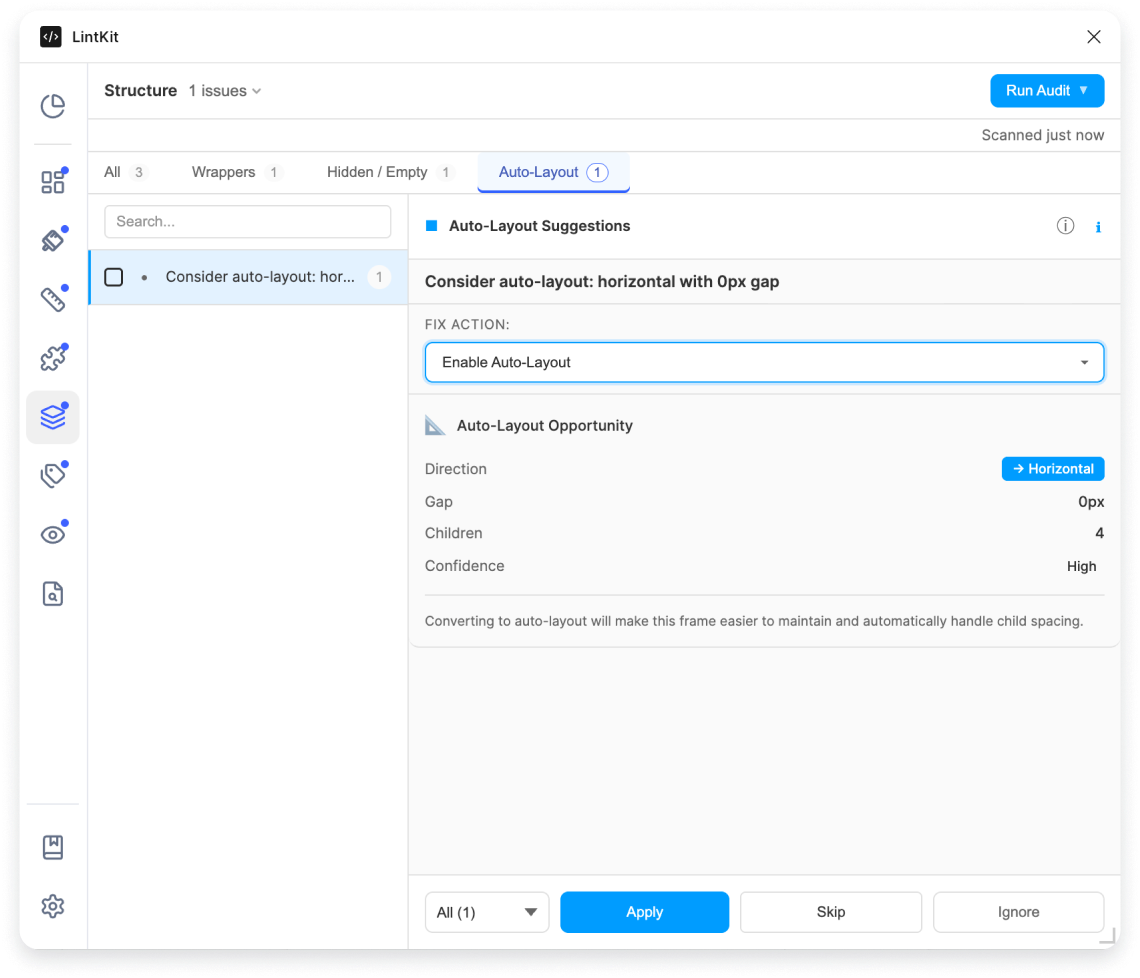
Frames where children are arranged in a consistent horizontal or vertical line with roughly equal gaps. For example:
> **Content Row** has 4 children in a horizontal arrangement with \~16px gaps.
> Suggested: Convert to horizontal auto layout with 16px gap.
### When to enable it
Enable this rule after you have defined your spacing scale in **Settings** by populating the `allowedSpacing` array. If you leave `allowedSpacing` empty, LintKit falls back to multiples of `baseSpacing` (default: `8`), but explicit values give you more control.
Disable if your file is in early exploration and spacing has not been finalized.
### The four sub-checks
The spacing scale rule runs four independent sub-checks. Each can be toggled separately, and each has a different confidence level that determines how fixes are applied.
**Config key:** `spacingChecks.autolayout` (default: `true`)
Checks `paddingLeft`, `paddingRight`, `paddingTop`, `paddingBottom`, `itemSpacing`, and `counterAxisSpacing` on frames that use auto layout.
**Example scenario:** You have a card component with `paddingLeft: 13px` and `paddingRight: 13px`. Both are off-scale and snap to the same target (`12px`). LintKit groups them into a single `paddingHorizontal` finding instead of reporting them separately.
**Example finding:**
> `paddingHorizontal` is `13px` on **Card/Default** -- not on spacing scale. Nearest: `12px`
**Fix confidence:** High. Auto-layout padding is a single-property snap that cannot break layout. Click **Apply Fix** to correct it instantly.
**Config key:** `spacingChecks.lineHeight` (default: `true`)
Checks line height on text nodes when the unit is **pixels only**. Percentage (`%`) and auto (`AUTO`) line heights are always considered valid and are never flagged.
**Example finding:**
> Line height `22px` on Body text -- not on spacing scale. Nearest: `24px`
Configure a separate scale with `allowedLineHeights`. Set it to `'inherit'` (the default) to reuse your `allowedSpacing` values, or provide a custom array like `[16, 20, 24, 28, 32, 40, 48]`.
**Fix confidence:** High. Line height changes are safe single-property snaps.
**Config key:** `spacingChecks.manualGaps` (default: `true`)
Measures horizontal and vertical gaps between consecutive children in frames that do **not** use auto layout. Flags gaps that fall outside your spacing scale.
**Example scenario:** You have a free-form layout with three cards spaced `11px`, `12px`, and `13px` apart vertically. LintKit flags the `11px` and `13px` gaps as off-scale.
**Example finding:**
> Manual vertical gap `11px` between layers in **Content Section** -- not on spacing scale. Nearest: `12px`.
> Fix requires moving layers. Select the parent frame to review.
**Fix confidence:** Low. There is no auto-fix button because correcting manual gaps requires moving layers, which could break spatial relationships with other elements. LintKit provides instructions instead:
* Select the affected nodes
* Select the parent frame
* Consider converting to auto layout
Rotated children (rotation > 0.1 degrees) are excluded from gap calculations.
**Config key:** `spacingChecks.dimensions` (default: `false`)
Checks `width` and `height` of all nodes against your spacing scale. This sub-check is **off by default** because dimension enforcement is aggressive -- most teams only care about padding and gap spacing.
**Example finding:**
> Width `157px` on **Avatar/Large** -- not on spacing scale. Nearest: `160px`
**Fix confidence:** Medium. Dimension changes can cause text clipping or overlap. The fix button is available, but review the result after applying.
**Excluded from checking:**
* Elements larger than `maxDimensionToCheck` (default: `200px`) -- hero images, full-width containers, and other large elements are unlikely to follow a spacing scale.
* Auto-sized frames (HUG/FILL) -- their size is determined by content, not explicit values.
* Rotated elements (when `skipRotatedDimensions` is enabled).
### Configuration
| Key | Default | Description | Use case for adjusting |
| --------------------- | ----------- | ----------------------------------------------------------- | ----------------------------------------------------------------------------------------------- |
| `allowedSpacing` | `[]` | Explicit list of allowed spacing values | Populate with your design system spacing tokens, e.g. `[0, 2, 4, 8, 12, 16, 24, 32, 48, 64]` |
| `baseSpacing` | `8` | Base spacing unit (used when `allowedSpacing` is empty) | Change to `4` for a 4px-based system |
| `spacingTolerance` | `0` | Pixel tolerance for matching (0 = exact match only) | Set to `1` to allow 1px tolerance on all checks |
| `allowedLineHeights` | `'inherit'` | Separate line height scale, or `'inherit'` to reuse spacing | Provide `[16, 20, 24, 28, 32, 40, 48]` if your line heights differ from spacing |
| `maxDimensionToCheck` | `200` | Skip dimension check for elements larger than this (px) | Increase to `400` if you want to check larger elements; decrease to `100` for stricter checking |
### Edge cases
When Tokens Studio is connected and `enforceSpacing` is enabled, LintKit merges your token spacing values with `allowedSpacing`. In strict mode, values matching tokens suppress findings. In advisory mode, findings still appear with token metadata.
To keep scans fast, spacing checks cap at 50 nodes per finding and 1000 total dimension nodes. The finding reports the true `totalAffectedCount` even when not all nodes are listed.
***
## Corner Radii
**Default:** Off | **Severity:** `warn`
Checks corner radius values against your allowed set. This rule is off by default because it requires you to configure `allowedRadii` in **Settings**.
### What it detects
Any corner radius that does not appear in your allowed set. For example, if your allowed radii are `[0, 4, 8, 12, 16, 24, 32]` and a button has `6px` corner radius:
> Corner radius `6px` on **Button/Secondary** -- not in allowed set. Nearest: `4px`
### When to enable it
Enable after defining your `allowedRadii` in **Settings**. The default set `[0, 4, 8, 12, 16, 24, 32]` works well for most design systems. Disable if your team has not standardized radius values yet.
### How to fix findings
Click **Apply Fix** to snap the radius to the nearest allowed value. LintKit calculates the closest value from your scale and applies it.
### Configuration
| Key | Default | Description |
| -------------- | --------------------------- | ------------------------------ |
| `allowedRadii` | `[0, 4, 8, 12, 16, 24, 32]` | Permitted corner radius values |
### Edge cases
* **Zero radius** is always valid and never flagged, regardless of your `allowedRadii` configuration.
* **Mixed radii** (different values on each corner) are skipped because there is no single value to snap to.
* **Exact match only.** The default tolerance is zero, meaning `8.1px` would be flagged even though `8px` is allowed. There is no configurable tolerance for radii.
* **Tokens Studio:** When `enforceRadii` is enabled, token radius values are merged with your configured `allowedRadii`.
***
## Stroke Weight
**Default:** On | **Severity:** `info`
Reports all distinct stroke weight values found in your file and offers replacement options from your allowed set.
### What it detects
Unlike spacing and radii rules, the stroke weight rule reports **every** distinct stroke weight it finds -- not just off-scale ones. This gives you a complete inventory of stroke weights in your file.
For example:
> **Stroke weight 1.5px** -- found on 23 layers.
> Replace with: 1px, 2px, 3px, 4px
### When to enable it
This rule is on by default. It is useful for auditing stroke weight consistency across a file. Disable it if you intentionally use many different stroke weights (for example, in illustration-heavy files).
### How to fix findings
Each finding shows replacement buttons for each allowed stroke weight. Click the weight you want to standardize to, and LintKit updates all affected layers.
### Configuration
| Key | Default | Description |
| ---------------- | -------------- | ------------------------------------------------------------------ |
| `allowedStrokes` | `[1, 2, 3, 4]` | Permitted stroke weight values. Fallback: `[0.5, 1, 1.5, 2, 3, 4]` |
### Edge cases
* **Mixed per-side stroke weights** (different top, right, bottom, left values) are reported as a separate finding with no auto-fix. You need to manually adjust individual sides.
* **Only visible strokes** are checked. Strokes with visibility turned off are ignored.
***
## Fractional Pixels
**Default:** On | **Severity:** `info`
Detects non-integer values for `x`, `y`, `width`, and `height`. Fractional pixels cause real rendering problems that are worth fixing.
### What it detects
Any node where the position or size is not a whole number. For example:
> **x position** is fractional on 15 layers.
> Sample values: `120.5px`, `340.25px`, `89.75px`
### Why fractional pixels matter
Fractional pixels cause three problems:
1. **Blurry rendering.** A 1px border at `y: 100.5` gets anti-aliased across two rows of screen pixels, rendering as a blurry 2px line instead of a crisp 1px line.
2. **Handoff confusion.** Developers receive values like `padding: 12.5px` in specs, which most CSS implementations will round differently depending on the browser.
3. **Inconsistent spacing.** Two elements that should be the same size end up as 48px and 48.5px, creating visual inconsistencies that are invisible in Figma but visible on screen.
### When to enable it
Keep this on (it is enabled by default) for all production design work. Disable only for illustration or artistic work where precise pixel alignment does not matter.
### How to fix findings
Click **Apply Fix** to snap each fractional value to the nearest whole pixel. LintKit rounds each value to the closest integer.
A value is considered fractional if it deviates from a whole number by more than `0.001px` (a tolerance for floating-point precision -- values like `48.0000001` are treated as `48`).
### Edge cases
* **Rotated elements** (rotation > 0.1 degrees) are skipped. Rotation legitimately produces fractional positions because Figma recalculates bounding boxes after rotation.
* **Layers inside component instances** are skipped. Fix the main component instead.
***
## Auto Layout Suggestion
**Default:** On | **Severity:** `info`
Identifies frames without auto layout that could benefit from it. LintKit analyzes how children are positioned to detect linear arrangements that auto layout can express more reliably.
### What it detects
Frames where children are arranged in a consistent horizontal or vertical line with roughly equal gaps. For example:
> **Content Row** has 4 children in a horizontal arrangement with \~16px gaps.
> Suggested: Convert to horizontal auto layout with 16px gap.
 ### When to enable it
Keep this on for files where you want to promote auto layout adoption. Disable if you are working with intentionally free-form layouts (like a mood board or collage).
### How detection works
LintKit checks frames without auto layout that have at least `minChildrenForAutoLayout` (default: `2`) visible children.
Children are sorted by X position (horizontal) and Y position (vertical). LintKit computes the gaps between each pair of consecutive bounding boxes in both directions.
The direction with the lower gap variance wins. If variance exceeds 10px or any gaps are negative (overlapping children), that direction is invalid. When both directions score equally, horizontal is preferred.
* Variance less than 1px: **high** confidence
* Variance less than 3px: **medium** confidence
* Variance 3px or more: **low** confidence (finding is suppressed -- too inconsistent to suggest)
### How to fix findings
Click **Apply Fix** to convert the frame to auto layout with the inferred direction (horizontal or vertical) and the calculated average gap.
### Configuration
| Key | Default | Description |
| -------------------------- | ------- | -------------------------------------------------------- |
| `suggestAutoLayout` | `true` | Master toggle for auto-layout suggestions |
| `minChildrenForAutoLayout` | `2` | Minimum visible children required to suggest auto layout |
| `gapVarianceTolerance` | `2` | Pixel variance tolerance for gap consistency |
***
## Grid Alignment
**Default:** Off | **Severity:** `info`
Checks whether nodes are properly aligned to column grids and optionally to a baseline grid. This rule is off by default because it requires grid configuration.
### What it detects
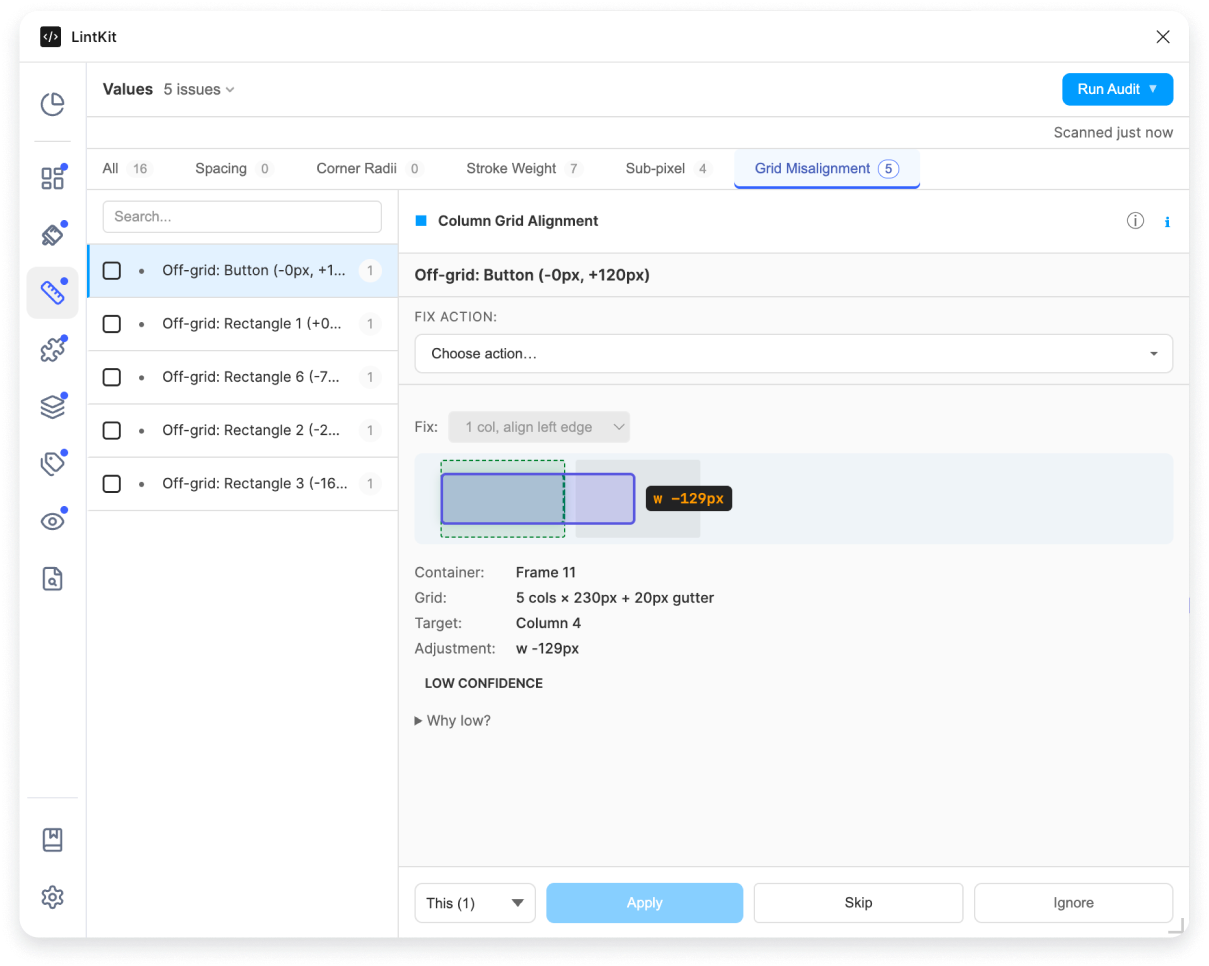
Nodes whose edges do not align to the nearest column grid or baseline grid. For example:
> **Hero Image** is 14px off the column grid. Left edge should start at column 2 (x: 88), but is at x: 102.
> Suggested fix: nudge 14px left.
### When to enable it
Keep this on for files where you want to promote auto layout adoption. Disable if you are working with intentionally free-form layouts (like a mood board or collage).
### How detection works
LintKit checks frames without auto layout that have at least `minChildrenForAutoLayout` (default: `2`) visible children.
Children are sorted by X position (horizontal) and Y position (vertical). LintKit computes the gaps between each pair of consecutive bounding boxes in both directions.
The direction with the lower gap variance wins. If variance exceeds 10px or any gaps are negative (overlapping children), that direction is invalid. When both directions score equally, horizontal is preferred.
* Variance less than 1px: **high** confidence
* Variance less than 3px: **medium** confidence
* Variance 3px or more: **low** confidence (finding is suppressed -- too inconsistent to suggest)
### How to fix findings
Click **Apply Fix** to convert the frame to auto layout with the inferred direction (horizontal or vertical) and the calculated average gap.
### Configuration
| Key | Default | Description |
| -------------------------- | ------- | -------------------------------------------------------- |
| `suggestAutoLayout` | `true` | Master toggle for auto-layout suggestions |
| `minChildrenForAutoLayout` | `2` | Minimum visible children required to suggest auto layout |
| `gapVarianceTolerance` | `2` | Pixel variance tolerance for gap consistency |
***
## Grid Alignment
**Default:** Off | **Severity:** `info`
Checks whether nodes are properly aligned to column grids and optionally to a baseline grid. This rule is off by default because it requires grid configuration.
### What it detects
Nodes whose edges do not align to the nearest column grid or baseline grid. For example:
> **Hero Image** is 14px off the column grid. Left edge should start at column 2 (x: 88), but is at x: 102.
> Suggested fix: nudge 14px left.
 ### When to enable it
Enable when your team uses column grids for page-level layout. Configure your grid settings (breakpoints, column count, gutter, margin) in **Settings** before turning this rule on.
### How confidence scoring works
Grid alignment starts at **high confidence** and is downgraded based on specific conditions:
| Condition | Effect on confidence | Why |
| ------------------ | -------------------- | ----------------------------------------------------------------------------------- |
| Deviation > 50px | Downgraded to medium | Large deviation likely means the element was intentionally placed off-grid |
| Deviation > 100px | Downgraded to low | Very large deviation almost always means the element is not meant to be on the grid |
| Rotated element | Downgraded | Rotated bounding boxes do not align cleanly to grids |
| Auto-layout child | Downgraded | Position is controlled by the parent auto-layout, not by the element itself |
| Text node | Downgraded | Text nodes often have irregular widths due to content |
| Component instance | Downgraded | Instance sizing may be controlled by the component definition |
Only high-confidence findings get a one-click **Apply Fix** button. Medium and low confidence findings provide manual instructions.
### Fix types
Depending on how far off-grid a node is and your configured limits, LintKit suggests one of four fix types:
* **Nudge** -- move the node to align its edges to the grid
* **Resize** -- adjust the width to span full columns
* **Nudge and resize** -- both move and resize
* **Manual** -- deviation exceeds `maxNudgePx` or `maxResizePx`, so only instructions are provided
### Configuration
| Key | Default | Description |
| --------------------- | --------- | --------------------------------------------------------------------------------------------- |
| `tolerancePx` | varies | Pixel tolerance for alignment. A node within this distance of the grid is considered aligned. |
| `alignmentMode` | `'edges'` | `'edges'` checks both left and right edges; `'left-only'` checks only the left edge |
| `maxNudgePx` | varies | Maximum distance to nudge before downgrading to manual fix |
| `maxResizePx` | varies | Maximum resize amount before downgrading to manual fix |
| `baselineGridEnabled` | `false` | Enable baseline grid checking in addition to column grid |
| `baselineUnit` | `8` | Baseline grid unit size. Checks if x, y, width, height are multiples of this value. |
| `breakpoints` | `[]` | Array of breakpoint configurations (width, columns, gutter, margin) |
### Edge cases
* Grid alignment checks a maximum of 2,000 nodes per scan. Nodes below 100px width or 40px height are excluded (too small to be grid-aligned elements).
* Geometry calculations are cached (LRU cache, max 50 entries) to keep scans fast.
* Elements can be excluded by type: `excludeRotated`, `excludeText`, `excludeInstances`, `excludeAutoLayout`, and `excludeNamePrefixes` let you skip specific elements.
***
## Absolute Positioning
**Default:** On | **Severity:** `warn`
Flags layers using absolute positioning inside auto-layout parents. Absolute-positioned layers opt out of the auto-layout flow, which often indicates a layout that should be restructured.
### What it detects
Any layer with absolute positioning inside a parent that uses horizontal or vertical auto layout. Findings are grouped by parent frame -- one finding per parent. For example:
> **Card/Default** contains 2 absolutely positioned layers: `Badge`, `Close Button`.
> These layers break the auto-layout flow.
### When to enable it
Keep this on (it is the default) to catch accidental absolute positioning. Disable if your design intentionally uses overlapping elements within auto-layout (for example, floating badges or overlay indicators).
### How to fix findings
Click **Apply Fix** to change the positioning from absolute to auto. The layer will re-enter the auto-layout flow at its current position in the layer order.
Before applying, verify that the layer is supposed to participate in auto layout. Some elements (like notification badges or floating action buttons) are intentionally absolute-positioned.
### Configuration
| Key | Default | Description |
| ------------------------------------ | -------- | ------------------------------------------ |
| `layout.flagAbsoluteInAutoLayout` | `true` | Toggle this rule on or off |
| `layout.absolutePositioningSeverity` | `'warn'` | Set severity to `info`, `warn`, or `error` |
### Edge cases
* Absolute positioning inside **GRID** layout parents is not flagged (grid layout commonly uses absolute positioning for overlays).
* Absolute positioning inside parents with **no auto layout** (`NONE`) is not flagged (these are free-form frames where absolute positioning is the default).
* Only parents with `HORIZONTAL` or `VERTICAL` auto layout trigger this rule.
### When to enable it
Enable when your team uses column grids for page-level layout. Configure your grid settings (breakpoints, column count, gutter, margin) in **Settings** before turning this rule on.
### How confidence scoring works
Grid alignment starts at **high confidence** and is downgraded based on specific conditions:
| Condition | Effect on confidence | Why |
| ------------------ | -------------------- | ----------------------------------------------------------------------------------- |
| Deviation > 50px | Downgraded to medium | Large deviation likely means the element was intentionally placed off-grid |
| Deviation > 100px | Downgraded to low | Very large deviation almost always means the element is not meant to be on the grid |
| Rotated element | Downgraded | Rotated bounding boxes do not align cleanly to grids |
| Auto-layout child | Downgraded | Position is controlled by the parent auto-layout, not by the element itself |
| Text node | Downgraded | Text nodes often have irregular widths due to content |
| Component instance | Downgraded | Instance sizing may be controlled by the component definition |
Only high-confidence findings get a one-click **Apply Fix** button. Medium and low confidence findings provide manual instructions.
### Fix types
Depending on how far off-grid a node is and your configured limits, LintKit suggests one of four fix types:
* **Nudge** -- move the node to align its edges to the grid
* **Resize** -- adjust the width to span full columns
* **Nudge and resize** -- both move and resize
* **Manual** -- deviation exceeds `maxNudgePx` or `maxResizePx`, so only instructions are provided
### Configuration
| Key | Default | Description |
| --------------------- | --------- | --------------------------------------------------------------------------------------------- |
| `tolerancePx` | varies | Pixel tolerance for alignment. A node within this distance of the grid is considered aligned. |
| `alignmentMode` | `'edges'` | `'edges'` checks both left and right edges; `'left-only'` checks only the left edge |
| `maxNudgePx` | varies | Maximum distance to nudge before downgrading to manual fix |
| `maxResizePx` | varies | Maximum resize amount before downgrading to manual fix |
| `baselineGridEnabled` | `false` | Enable baseline grid checking in addition to column grid |
| `baselineUnit` | `8` | Baseline grid unit size. Checks if x, y, width, height are multiples of this value. |
| `breakpoints` | `[]` | Array of breakpoint configurations (width, columns, gutter, margin) |
### Edge cases
* Grid alignment checks a maximum of 2,000 nodes per scan. Nodes below 100px width or 40px height are excluded (too small to be grid-aligned elements).
* Geometry calculations are cached (LRU cache, max 50 entries) to keep scans fast.
* Elements can be excluded by type: `excludeRotated`, `excludeText`, `excludeInstances`, `excludeAutoLayout`, and `excludeNamePrefixes` let you skip specific elements.
***
## Absolute Positioning
**Default:** On | **Severity:** `warn`
Flags layers using absolute positioning inside auto-layout parents. Absolute-positioned layers opt out of the auto-layout flow, which often indicates a layout that should be restructured.
### What it detects
Any layer with absolute positioning inside a parent that uses horizontal or vertical auto layout. Findings are grouped by parent frame -- one finding per parent. For example:
> **Card/Default** contains 2 absolutely positioned layers: `Badge`, `Close Button`.
> These layers break the auto-layout flow.
### When to enable it
Keep this on (it is the default) to catch accidental absolute positioning. Disable if your design intentionally uses overlapping elements within auto-layout (for example, floating badges or overlay indicators).
### How to fix findings
Click **Apply Fix** to change the positioning from absolute to auto. The layer will re-enter the auto-layout flow at its current position in the layer order.
Before applying, verify that the layer is supposed to participate in auto layout. Some elements (like notification badges or floating action buttons) are intentionally absolute-positioned.
### Configuration
| Key | Default | Description |
| ------------------------------------ | -------- | ------------------------------------------ |
| `layout.flagAbsoluteInAutoLayout` | `true` | Toggle this rule on or off |
| `layout.absolutePositioningSeverity` | `'warn'` | Set severity to `info`, `warn`, or `error` |
### Edge cases
* Absolute positioning inside **GRID** layout parents is not flagged (grid layout commonly uses absolute positioning for overlays).
* Absolute positioning inside parents with **no auto layout** (`NONE`) is not flagged (these are free-form frames where absolute positioning is the default).
* Only parents with `HORIZONTAL` or `VERTICAL` auto layout trigger this rule.