> ## Documentation Index
> Fetch the complete documentation index at: https://docs.lintkit.com/llms.txt
> Use this file to discover all available pages before exploring further.
# Cleanup rules
> Remove hidden layers, empty groups, and default names
Cleanup rules catch structural problems that clutter your file, inflate the layer panel, and confuse developers during handoff. These findings are typically the easiest to fix and have the highest immediate impact on file hygiene.
## Cleanup
**Default:** On | **Severity:** `info`
A multi-check rule that detects four types of structural clutter. Each sub-check targets a different kind of leftover that accumulates during normal design work.
### What it detects
**What gets flagged:** Any layer with visibility turned off.
**Example scenario:** While exploring a dark mode variant, you hide the original header. The design ships, the hidden header stays behind. A developer inspecting the file sees two headers and asks which one is correct.
**Example finding:**
> **Hidden layer** `Header/v1-old` is not visible. 14 hidden layers found.
**Why it matters:** Hidden layers cause confusion during handoff because they appear in dev tool exports and layer inspectors. They also inflate file size and make the layer panel harder to navigate.
**Fix:** Click **Apply Fix** to remove the hidden layer. LintKit deletes the layer from the file entirely.
Before applying, verify the layer is not hidden intentionally (for example, as part of a toggle state or variant). If the layer is inside a component variant, removing it could break the component.
**What gets flagged:** Groups with zero children.
**Example scenario:** You select several layers, group them, then move the layers out to a different frame. The empty group remains behind, invisible but cluttering the layer panel.
**Example finding:**
> **Empty group** `Group 3` has 0 children. 5 empty groups found.
**Why it matters:** Empty groups add unnecessary depth to the layer tree and can confuse both designers and developers inspecting the file structure.
**Fix:** Click **Apply Fix** to delete the empty group.
**What gets flagged:** Frames with zero children **and** no visible fills or strokes.
**Example scenario:** You create a frame as a placeholder, never add content, and forget about it. It sits in your design as an invisible empty box.
**Example finding:**
> **Empty frame** `Frame 12` has 0 children and no fills or strokes. 3 empty frames found.
**Why it matters:** Empty frames with no visual properties serve no purpose and clutter the file.
**Fix:** Click **Apply Fix** to delete the empty frame.
**Not flagged:** Frames that have fills or strokes but no children are treated as intentional elements (color overlays, dividers, spacer elements) and are **never** flagged by this sub-check.
**What gets flagged:** Groups that wrap a single element. The extra group adds no structural value.
**Example scenario:** You group a button with a label, then later remove the label. The group now wraps only the button. Or you paste content from another file and it arrives wrapped in an extra group.
**Example finding:**
> **Single-child group** `Group 7` wraps only `Button/Primary`. 8 single-child groups found.
**Why it matters:** Single-child groups inflate the layer tree, make selection harder (you have to double-click through the group), and break override chains on component instances.
**Fix:** Click **Apply Fix** to flatten (ungroup) the group. The child layer moves up to the group's parent at the same position.
**Not flagged:**
* Groups where the single child is a component instance -- these are handled by the [components rule](/rules/components) instead.
* Groups inside component instances -- these are part of the library structure and are not yours to change.
### When to enable it
Keep this rule on (it is the default) for all production files. It catches low-effort cleanup opportunities that improve file quality immediately. Disable only for rough exploration files where structure does not matter yet.
### How to fix all cleanup findings at once
Open LintKit and run a scan. Cleanup findings appear in the **Structure** tab.
Click through each finding to verify nothing is hidden or empty intentionally. Pay special attention to hidden layers that might be variant states.
Use bulk fix ([Pro](/features/pricing)) to apply all cleanup fixes at once, or fix findings individually by clicking **Apply Fix** on each one.
Run another scan to confirm all cleanup findings are resolved. Fixing some findings (like ungrouping a single-child group) can reveal new findings.
***
## Layer Naming
**Default:** On | **Severity:** `info`
Detects layers with default auto-generated names (like `Frame 1` or `Rectangle 47`) and naming convention violations. This rule uses a two-phase detection system that first catches generic names, then detects your team's naming convention and flags deviations from it.
### What it detects
Layer naming catches two broad categories of problems:
1. **Generic default names** -- Figma's auto-generated names like `Frame 1`, `Rectangle 47`, `Group 3`. These tell developers nothing about what the layer is.
2. **Convention violations** -- If your file consistently uses `camelCase` naming, a layer named `hero-banner` (kebab-case) is flagged as a deviation.
 ### Phase 1: Pattern detection
LintKit ships with **28 built-in patterns** organized into four categories:
Matches Figma's auto-generated names. These are the most common findings:
* Shape defaults: `Frame 1`, `Rectangle 47`, `Ellipse 1`, `Line 1`, `Polygon 1`, `Star 1`, `Vector 1`
* Container defaults: `Group 3`, `Section 1`
* Content defaults: `Text 1`, `Image 1`
* Component defaults: `Component 1`, `Instance 1`
* Other defaults: `Slice 1`, `Connector 1`, `Stamp 1`, `Sticky 1`, `Widget 1`, `Highlight 1`, `Shape with Text 1`
* Boolean operation defaults: `Union`, `Subtract`, `Intersect`, `Exclude`
**Example finding:**
> **Default name** `Frame 47` -- 23 layers use Figma's auto-generated names. Consider renaming to describe their purpose.
* **Copy suffix** (enabled by default) -- flags names like `Button_copy`, `Card copy 2`, `Header Copy`
* **Numbered suffix** (disabled by default) -- flags names like `Button 2`, `Card 3`. This is disabled because numbering may be intentional in certain contexts.
**Example finding:**
> **Copy suffix** `Card copy 2` -- 5 layers appear to be duplicates with copy suffixes. Consider renaming them.
* **Temp names** -- flags `temp`, `tmp`, `test`, `TODO`, `FIXME`, `untitled`, `asdf`, and similar placeholder text
* **Placeholder prefix** -- flags `WIP Button`, `DRAFT Header`, `DELETE Card`, `REMOVE Section`, `OLD Footer`
**Example finding:**
> **Placeholder name** `TODO fix this layout` -- 3 layers have temporary names that should be cleaned up before handoff.
Layers matching these patterns are **excluded from all naming checks**:
* **Dot prefix** (`.layerName`) -- intentionally hidden layers (enabled by default)
* **Underscore prefix** (`_layerName`) -- internal/private layers (disabled by default)
* **Hash prefix** (`#layerName`) -- metadata layers (disabled by default)
You can add **custom forbidden patterns** in **Settings** to flag names specific to your team's conventions.
### Phase 2: Convention detection
When LintKit collects at least **5 naming samples** with **70% or higher confidence**, it detects the prevailing naming convention in your file. Supported conventions include `camelCase`, `PascalCase`, `kebab-case`, `snake_case`, and others.
Once a convention is detected, any layer name that deviates is flagged. For example, if 80% of your layers use `PascalCase`, a layer named `hero-banner` (kebab-case) would be flagged.
### Severity tiers
Layer naming severity scales based on where the layer sits in the hierarchy. Deeper, less important layers get lower severity:
| Tier | Layer types | Severity | Rationale |
| ----------- | --------------------------------------------- | ----------- | --------------------------------------------------------------------------------------------------- |
| 1 (highest) | Top-level frames, sections, components | `error` | These appear in dev handoff navigation and page overview. A default name here is a serious problem. |
| 2 | Shallow frames, groups, text nodes, instances | `warn` | Visible in the layer panel during development. Worth fixing before handoff. |
| 3 | Deep frames, deep groups | `info` | Buried in the layer tree. Nice to fix but low priority. |
| 4 (skipped) | Vectors, ellipses, shapes | Not flagged | Primitive shapes rarely need meaningful names. |
**Example:** A component named `Component 1` is tier 1 (error), while a deeply nested group named `Group 3` is tier 3 (info).
### How to fix findings
Focus on top-level frames, sections, and components first. These are the names that appear in navigation and dev tools.
Choose names that describe what the layer is or does. Follow your team's naming convention. For example:
| Before (default name) | After (descriptive name) |
| --------------------- | ------------------------ |
| `Frame 1` | `HeroSection` |
| `Rectangle 47` | `CardBackground` |
| `Group 3` | `NavigationBar` |
| `Text 1` | `PageTitle` |
| `Component 1` | `PrimaryButton` |
LintKit's batch rename feature lets you rename multiple layers at once. Select multiple findings and apply a naming pattern to fix them in bulk.
If a naming finding also flags a single-child group, consider flattening it instead of just renaming it. Click **Apply Fix** to flatten the group.
## Batch Rename
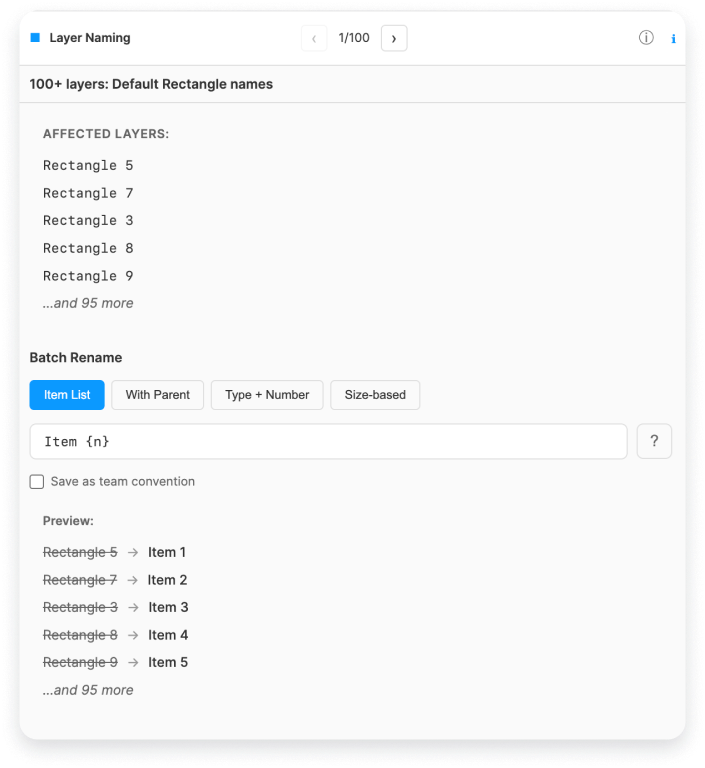
When a Layer Naming finding is open, LintKit shows a **Batch Rename** panel at the bottom of the inspector. Instead of renaming layers one by one, you pick a mode, type a pattern, and preview the result before applying it to every affected layer at once.
### How it works
1. Open a Layer Naming finding in the results panel
2. The **Batch Rename** panel appears below the affected layers list
3. Choose a rename mode (see below)
4. Type a pattern — the **Preview** section updates live
5. Click **Apply** to rename all affected layers
Checking **Save as team convention** saves your pattern as the default for future Layer Naming findings in this file.
***
### Rename modes
#### Item List
Write your own pattern using tokens (see [Pattern tokens](#pattern-tokens)). LintKit renames each layer using that pattern, with `{n}` counting up from 1 in layer-panel order (top to bottom).
**Best for:** Repeated sibling layers — pricing cards, feature rows, onboarding steps, testimonials, nav items.
***
#### With Parent
Automatically prefixes each layer's name with its parent frame name. Pattern is `{parent} {type}` — you can't edit it in this mode.
**Best for:** Nested elements that lose context when viewed in isolation — icon slots, column headers, tab panel contents.
***
#### Type + Number
Replaces Figma's noisy auto-generated numbers (`Frame 203`) with a clean sequential counter starting at 1 (`Frame 1`). Same shape, intentional numbering.
**Best for:** Mid-fidelity files that aren't ready for semantic naming yet. Clears the lint warning without committing to a final name.
***
#### Size-based
Renames each layer to its pixel dimensions in `{w}×{h}` format.
**Best for:** Responsive breakpoint frames, icon size variants, device artboard collections.
***
### Pattern tokens
Use these inside any **Item List** pattern:
| Token | Inserts | Example output |
| ---------- | ------------------------------- | ------------------------ |
| `{n}` | Sequential number starting at 1 | `1`, `2`, `3` |
| `{N}` | Zero-padded number | `01`, `02`, `03` |
| `{type}` | Figma layer type, lowercase | `frame`, `group`, `text` |
| `{parent}` | Parent layer name | `Hero`, `Sidebar` |
| `{w}` | Layer width in pixels | `375`, `1440` |
| `{h}` | Layer height in pixels | `812`, `900` |
Tokens are case-sensitive — `{N}` and `{n}` produce different results.
***
### Pattern examples
Copy any pattern directly into the text field.
#### Screens and artboards
These appear in prototype flows and Figma's page navigation — giving them clear names has the highest impact on handoff quality.
* **Numbered screen variants**
```
Screen {N}
```
`Frame 47`, `Frame 12`, `Frame 203` → `Screen 01`, `Screen 02`, `Screen 03`
* **Checkout flow steps**
```
Checkout / Step {n}
```
`Frame 3`, `Frame 7`, `Frame 9` → `Checkout / Step 1`, `Checkout / Step 2`, `Checkout / Step 3`
* **Responsive breakpoints**
```
{w}px breakpoint
```
`Frame 1`, `Frame 2`, `Frame 3` → `375px breakpoint`, `768px breakpoint`, `1440px breakpoint`
* **Feature flag variants**
```
Dashboard / Variant {N}
```
`Frame 1`, `Frame 2` → `Dashboard / Variant 01`, `Dashboard / Variant 02`
***
#### Marketing and landing page sections
* **Generic page sections**
```
Section {n}
```
`Frame 1`, `Frame 2`, `Frame 3` → `Section 1`, `Section 2`, `Section 3`
* **Feature highlight rows**
```
Feature {n}
```
`Group 3`, `Group 5`, `Group 7` → `Feature 1`, `Feature 2`, `Feature 3`
* **Testimonial cards**
```
Testimonial {n}
```
`Rectangle 5`, `Rectangle 7`, `Rectangle 3` → `Testimonial 1`, `Testimonial 2`, `Testimonial 3`
* **FAQ accordion items**
```
FAQ item {n}
```
`Group 1`, `Group 2`, `Group 3` → `FAQ item 1`, `FAQ item 2`, `FAQ item 3`
* **Pricing tier cards**
```
Pricing / Tier {n}
```
`Frame 4`, `Frame 5`, `Frame 6` → `Pricing / Tier 1`, `Pricing / Tier 2`, `Pricing / Tier 3`
***
#### Navigation and UI structure
* **Navigation menu items**
```
Nav item {n}
```
`Group 1`, `Group 2`, `Group 3`, `Group 4` → `Nav item 1`, `Nav item 2`, `Nav item 3`, `Nav item 4`
* **Sidebar links**
```
Sidebar link {n}
```
`Frame 2`, `Frame 5`, `Frame 8` → `Sidebar link 1`, `Sidebar link 2`, `Sidebar link 3`
* **Breadcrumb steps**
```
Breadcrumb {n}
```
`Group 9`, `Group 10`, `Group 11` → `Breadcrumb 1`, `Breadcrumb 2`, `Breadcrumb 3`
* **Tab items**
```
Tab {n}
```
`Frame 1`, `Frame 2`, `Frame 3` → `Tab 1`, `Tab 2`, `Tab 3`
***
#### Data tables and lists
* **Table rows**
```
Row {n}
```
`Frame 1` through `Frame 100` → `Row 1` through `Row 100`
* **Table columns**
```
Column {n}
```
`Group 1`, `Group 2`, `Group 3`, `Group 4` → `Column 1`, `Column 2`, `Column 3`, `Column 4`
* **List items (generic)**
```
List item {n}
```
`Frame 3`, `Frame 7`, `Frame 11` → `List item 1`, `List item 2`, `List item 3`
* **Activity feed entries**
```
Feed item {n}
```
`Group 4`, `Group 5`, `Group 6` → `Feed item 1`, `Feed item 2`, `Feed item 3`
***
#### Onboarding and flows
* **Onboarding steps**
```
Onboarding / Step {n}
```
`Frame 1`, `Frame 2`, `Frame 3`, `Frame 4` → `Onboarding / Step 1`, `Onboarding / Step 2`, `Onboarding / Step 3`, `Onboarding / Step 4`
* **Modal steps (multi-step forms)**
```
Modal / Step {N}
```
`Frame 2`, `Frame 5`, `Frame 8` → `Modal / Step 01`, `Modal / Step 02`, `Modal / Step 03`
* **Empty state illustrations**
```
Empty state {n}
```
`Group 1`, `Group 2` → `Empty state 1`, `Empty state 2`
***
#### Utility layers
* **Decorative or structural layers that repeat**
```
Divider
```
All selected layers → `Divider` (identical name is fine — LintKit only flags *default* names like `Rectangle 3`, not intentional repeated names)
* **Background fills**
```
Background
```
`Rectangle 47`, `Rectangle 12` → `Background`, `Background`
* **Spacer elements**
```
Spacer {n}
```
`Frame 1`, `Frame 2` → `Spacer 1`, `Spacer 2`
***
#### Icon sizing variants (Size-based mode)
Switch to **Size-based** mode — no pattern needed.
* `Frame 1` (16×16) → `16×16`
* `Frame 2` (24×24) → `24×24`
* `Frame 3` (32×32) → `32×32`
* `Frame 4` (48×48) → `48×48`
***
### Tips
**Check the preview before applying.** Every rename is shown in the Preview section as you type. Use Figma's native Cmd/Ctrl+Z to undo if you need to reverse a rename — LintKit's Apply Fix does not have its own undo.
**Fix Tier 1 findings first.** Top-level frames, sections, and components carry `error` severity because they appear in prototype navigation and dev handoff panels. Rename those before working through `warn` and `info` findings deeper in the layer tree.
**Use slash notation for grouping.** Patterns like `Checkout / Step {n}` or `Modal / Step {N}` mirror Figma's component folder convention and make layers easier to find in the layers panel.
**Save your team pattern once.** Check **Save as team convention** after settling on a pattern your team agrees on. LintKit pre-fills that pattern for every future Layer Naming finding, so the whole team renames consistently without having to remember the format.
***
### Configuration
| Key | Default | Description |
| ------------------------------ | ------- | ----------------------------------------------------------- |
| `naming.flagGenericNames` | `true` | Flag default auto-generated names |
| `naming.flagSingleChildGroups` | `true` | Flag single-child groups (also covered by the cleanup rule) |
| Custom forbidden patterns | `[]` | Add your own regex patterns in **Settings** |
### Edge cases
* Naming checks respect your **layer filters**: hidden and locked layers are skipped if `layerFilters.includeHiddenLayers` and `layerFilters.includeLockedLayers` are set to false (the default).
* Layers inside component instances are skipped by default -- rename the source component instead.
* The maximum is 100 nodes per finding to keep the findings panel manageable.
### Phase 1: Pattern detection
LintKit ships with **28 built-in patterns** organized into four categories:
Matches Figma's auto-generated names. These are the most common findings:
* Shape defaults: `Frame 1`, `Rectangle 47`, `Ellipse 1`, `Line 1`, `Polygon 1`, `Star 1`, `Vector 1`
* Container defaults: `Group 3`, `Section 1`
* Content defaults: `Text 1`, `Image 1`
* Component defaults: `Component 1`, `Instance 1`
* Other defaults: `Slice 1`, `Connector 1`, `Stamp 1`, `Sticky 1`, `Widget 1`, `Highlight 1`, `Shape with Text 1`
* Boolean operation defaults: `Union`, `Subtract`, `Intersect`, `Exclude`
**Example finding:**
> **Default name** `Frame 47` -- 23 layers use Figma's auto-generated names. Consider renaming to describe their purpose.
* **Copy suffix** (enabled by default) -- flags names like `Button_copy`, `Card copy 2`, `Header Copy`
* **Numbered suffix** (disabled by default) -- flags names like `Button 2`, `Card 3`. This is disabled because numbering may be intentional in certain contexts.
**Example finding:**
> **Copy suffix** `Card copy 2` -- 5 layers appear to be duplicates with copy suffixes. Consider renaming them.
* **Temp names** -- flags `temp`, `tmp`, `test`, `TODO`, `FIXME`, `untitled`, `asdf`, and similar placeholder text
* **Placeholder prefix** -- flags `WIP Button`, `DRAFT Header`, `DELETE Card`, `REMOVE Section`, `OLD Footer`
**Example finding:**
> **Placeholder name** `TODO fix this layout` -- 3 layers have temporary names that should be cleaned up before handoff.
Layers matching these patterns are **excluded from all naming checks**:
* **Dot prefix** (`.layerName`) -- intentionally hidden layers (enabled by default)
* **Underscore prefix** (`_layerName`) -- internal/private layers (disabled by default)
* **Hash prefix** (`#layerName`) -- metadata layers (disabled by default)
You can add **custom forbidden patterns** in **Settings** to flag names specific to your team's conventions.
### Phase 2: Convention detection
When LintKit collects at least **5 naming samples** with **70% or higher confidence**, it detects the prevailing naming convention in your file. Supported conventions include `camelCase`, `PascalCase`, `kebab-case`, `snake_case`, and others.
Once a convention is detected, any layer name that deviates is flagged. For example, if 80% of your layers use `PascalCase`, a layer named `hero-banner` (kebab-case) would be flagged.
### Severity tiers
Layer naming severity scales based on where the layer sits in the hierarchy. Deeper, less important layers get lower severity:
| Tier | Layer types | Severity | Rationale |
| ----------- | --------------------------------------------- | ----------- | --------------------------------------------------------------------------------------------------- |
| 1 (highest) | Top-level frames, sections, components | `error` | These appear in dev handoff navigation and page overview. A default name here is a serious problem. |
| 2 | Shallow frames, groups, text nodes, instances | `warn` | Visible in the layer panel during development. Worth fixing before handoff. |
| 3 | Deep frames, deep groups | `info` | Buried in the layer tree. Nice to fix but low priority. |
| 4 (skipped) | Vectors, ellipses, shapes | Not flagged | Primitive shapes rarely need meaningful names. |
**Example:** A component named `Component 1` is tier 1 (error), while a deeply nested group named `Group 3` is tier 3 (info).
### How to fix findings
Focus on top-level frames, sections, and components first. These are the names that appear in navigation and dev tools.
Choose names that describe what the layer is or does. Follow your team's naming convention. For example:
| Before (default name) | After (descriptive name) |
| --------------------- | ------------------------ |
| `Frame 1` | `HeroSection` |
| `Rectangle 47` | `CardBackground` |
| `Group 3` | `NavigationBar` |
| `Text 1` | `PageTitle` |
| `Component 1` | `PrimaryButton` |
LintKit's batch rename feature lets you rename multiple layers at once. Select multiple findings and apply a naming pattern to fix them in bulk.
If a naming finding also flags a single-child group, consider flattening it instead of just renaming it. Click **Apply Fix** to flatten the group.
## Batch Rename
When a Layer Naming finding is open, LintKit shows a **Batch Rename** panel at the bottom of the inspector. Instead of renaming layers one by one, you pick a mode, type a pattern, and preview the result before applying it to every affected layer at once.
### How it works
1. Open a Layer Naming finding in the results panel
2. The **Batch Rename** panel appears below the affected layers list
3. Choose a rename mode (see below)
4. Type a pattern — the **Preview** section updates live
5. Click **Apply** to rename all affected layers
Checking **Save as team convention** saves your pattern as the default for future Layer Naming findings in this file.
***
### Rename modes
#### Item List
Write your own pattern using tokens (see [Pattern tokens](#pattern-tokens)). LintKit renames each layer using that pattern, with `{n}` counting up from 1 in layer-panel order (top to bottom).
**Best for:** Repeated sibling layers — pricing cards, feature rows, onboarding steps, testimonials, nav items.
***
#### With Parent
Automatically prefixes each layer's name with its parent frame name. Pattern is `{parent} {type}` — you can't edit it in this mode.
**Best for:** Nested elements that lose context when viewed in isolation — icon slots, column headers, tab panel contents.
***
#### Type + Number
Replaces Figma's noisy auto-generated numbers (`Frame 203`) with a clean sequential counter starting at 1 (`Frame 1`). Same shape, intentional numbering.
**Best for:** Mid-fidelity files that aren't ready for semantic naming yet. Clears the lint warning without committing to a final name.
***
#### Size-based
Renames each layer to its pixel dimensions in `{w}×{h}` format.
**Best for:** Responsive breakpoint frames, icon size variants, device artboard collections.
***
### Pattern tokens
Use these inside any **Item List** pattern:
| Token | Inserts | Example output |
| ---------- | ------------------------------- | ------------------------ |
| `{n}` | Sequential number starting at 1 | `1`, `2`, `3` |
| `{N}` | Zero-padded number | `01`, `02`, `03` |
| `{type}` | Figma layer type, lowercase | `frame`, `group`, `text` |
| `{parent}` | Parent layer name | `Hero`, `Sidebar` |
| `{w}` | Layer width in pixels | `375`, `1440` |
| `{h}` | Layer height in pixels | `812`, `900` |
Tokens are case-sensitive — `{N}` and `{n}` produce different results.
***
### Pattern examples
Copy any pattern directly into the text field.
#### Screens and artboards
These appear in prototype flows and Figma's page navigation — giving them clear names has the highest impact on handoff quality.
* **Numbered screen variants**
```
Screen {N}
```
`Frame 47`, `Frame 12`, `Frame 203` → `Screen 01`, `Screen 02`, `Screen 03`
* **Checkout flow steps**
```
Checkout / Step {n}
```
`Frame 3`, `Frame 7`, `Frame 9` → `Checkout / Step 1`, `Checkout / Step 2`, `Checkout / Step 3`
* **Responsive breakpoints**
```
{w}px breakpoint
```
`Frame 1`, `Frame 2`, `Frame 3` → `375px breakpoint`, `768px breakpoint`, `1440px breakpoint`
* **Feature flag variants**
```
Dashboard / Variant {N}
```
`Frame 1`, `Frame 2` → `Dashboard / Variant 01`, `Dashboard / Variant 02`
***
#### Marketing and landing page sections
* **Generic page sections**
```
Section {n}
```
`Frame 1`, `Frame 2`, `Frame 3` → `Section 1`, `Section 2`, `Section 3`
* **Feature highlight rows**
```
Feature {n}
```
`Group 3`, `Group 5`, `Group 7` → `Feature 1`, `Feature 2`, `Feature 3`
* **Testimonial cards**
```
Testimonial {n}
```
`Rectangle 5`, `Rectangle 7`, `Rectangle 3` → `Testimonial 1`, `Testimonial 2`, `Testimonial 3`
* **FAQ accordion items**
```
FAQ item {n}
```
`Group 1`, `Group 2`, `Group 3` → `FAQ item 1`, `FAQ item 2`, `FAQ item 3`
* **Pricing tier cards**
```
Pricing / Tier {n}
```
`Frame 4`, `Frame 5`, `Frame 6` → `Pricing / Tier 1`, `Pricing / Tier 2`, `Pricing / Tier 3`
***
#### Navigation and UI structure
* **Navigation menu items**
```
Nav item {n}
```
`Group 1`, `Group 2`, `Group 3`, `Group 4` → `Nav item 1`, `Nav item 2`, `Nav item 3`, `Nav item 4`
* **Sidebar links**
```
Sidebar link {n}
```
`Frame 2`, `Frame 5`, `Frame 8` → `Sidebar link 1`, `Sidebar link 2`, `Sidebar link 3`
* **Breadcrumb steps**
```
Breadcrumb {n}
```
`Group 9`, `Group 10`, `Group 11` → `Breadcrumb 1`, `Breadcrumb 2`, `Breadcrumb 3`
* **Tab items**
```
Tab {n}
```
`Frame 1`, `Frame 2`, `Frame 3` → `Tab 1`, `Tab 2`, `Tab 3`
***
#### Data tables and lists
* **Table rows**
```
Row {n}
```
`Frame 1` through `Frame 100` → `Row 1` through `Row 100`
* **Table columns**
```
Column {n}
```
`Group 1`, `Group 2`, `Group 3`, `Group 4` → `Column 1`, `Column 2`, `Column 3`, `Column 4`
* **List items (generic)**
```
List item {n}
```
`Frame 3`, `Frame 7`, `Frame 11` → `List item 1`, `List item 2`, `List item 3`
* **Activity feed entries**
```
Feed item {n}
```
`Group 4`, `Group 5`, `Group 6` → `Feed item 1`, `Feed item 2`, `Feed item 3`
***
#### Onboarding and flows
* **Onboarding steps**
```
Onboarding / Step {n}
```
`Frame 1`, `Frame 2`, `Frame 3`, `Frame 4` → `Onboarding / Step 1`, `Onboarding / Step 2`, `Onboarding / Step 3`, `Onboarding / Step 4`
* **Modal steps (multi-step forms)**
```
Modal / Step {N}
```
`Frame 2`, `Frame 5`, `Frame 8` → `Modal / Step 01`, `Modal / Step 02`, `Modal / Step 03`
* **Empty state illustrations**
```
Empty state {n}
```
`Group 1`, `Group 2` → `Empty state 1`, `Empty state 2`
***
#### Utility layers
* **Decorative or structural layers that repeat**
```
Divider
```
All selected layers → `Divider` (identical name is fine — LintKit only flags *default* names like `Rectangle 3`, not intentional repeated names)
* **Background fills**
```
Background
```
`Rectangle 47`, `Rectangle 12` → `Background`, `Background`
* **Spacer elements**
```
Spacer {n}
```
`Frame 1`, `Frame 2` → `Spacer 1`, `Spacer 2`
***
#### Icon sizing variants (Size-based mode)
Switch to **Size-based** mode — no pattern needed.
* `Frame 1` (16×16) → `16×16`
* `Frame 2` (24×24) → `24×24`
* `Frame 3` (32×32) → `32×32`
* `Frame 4` (48×48) → `48×48`
***
### Tips
**Check the preview before applying.** Every rename is shown in the Preview section as you type. Use Figma's native Cmd/Ctrl+Z to undo if you need to reverse a rename — LintKit's Apply Fix does not have its own undo.
**Fix Tier 1 findings first.** Top-level frames, sections, and components carry `error` severity because they appear in prototype navigation and dev handoff panels. Rename those before working through `warn` and `info` findings deeper in the layer tree.
**Use slash notation for grouping.** Patterns like `Checkout / Step {n}` or `Modal / Step {N}` mirror Figma's component folder convention and make layers easier to find in the layers panel.
**Save your team pattern once.** Check **Save as team convention** after settling on a pattern your team agrees on. LintKit pre-fills that pattern for every future Layer Naming finding, so the whole team renames consistently without having to remember the format.
***
### Configuration
| Key | Default | Description |
| ------------------------------ | ------- | ----------------------------------------------------------- |
| `naming.flagGenericNames` | `true` | Flag default auto-generated names |
| `naming.flagSingleChildGroups` | `true` | Flag single-child groups (also covered by the cleanup rule) |
| Custom forbidden patterns | `[]` | Add your own regex patterns in **Settings** |
### Edge cases
* Naming checks respect your **layer filters**: hidden and locked layers are skipped if `layerFilters.includeHiddenLayers` and `layerFilters.includeLockedLayers` are set to false (the default).
* Layers inside component instances are skipped by default -- rename the source component instead.
* The maximum is 100 nodes per finding to keep the findings panel manageable.