> ## Documentation Index
> Fetch the complete documentation index at: https://docs.lintkit.com/llms.txt
> Use this file to discover all available pages before exploring further.
# GitHub
> Sync design tokens from any GitHub repository
 ## Overview
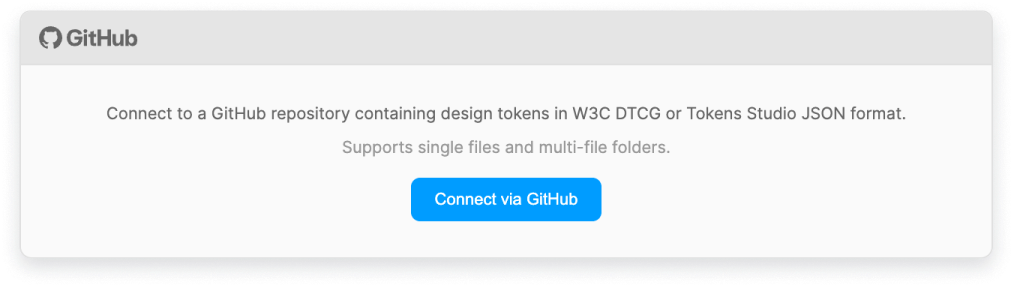
If your design tokens live in a GitHub repository, LintKit can fetch them directly and auto-configure rules. This keeps your lint rules in sync with your codebase without manual updates.
### When to use GitHub vs Tokens Studio
* **Use GitHub** when your engineering team maintains token files in a repository and you want LintKit to read directly from source control. This is the best choice when tokens are part of your codebase and go through code review.
* **Use Tokens Studio shared plugin data** when your team uses the Tokens Studio Figma plugin and tokens are already synced to your Figma files. This is simpler — no repository configuration needed.
* **Use Tokens Studio API** when your team uses the Tokens Studio cloud platform and you want tokens fetched remotely regardless of which Figma file is open.
### Why use GitHub with LintKit
* **Source control is the source of truth.** Your token JSON is versioned, reviewed, and merged like any other code. LintKit reads from the same file your engineers consume.
* **Branch-based validation.** Point LintKit at a feature branch to validate designs against in-progress token changes before they merge to `main`.
* **No additional platform.** If your tokens already live in GitHub, you don't need a Tokens Studio account or API key — just a repository path and optionally a personal access token for private repos.
* **Change history.** Every token change has a Git commit, so you can trace when a spacing value was added or a color was changed.
***
## Setup
In the plugin, open the **Settings** panel and navigate to **Integrations**.
Toggle on the GitHub integration.
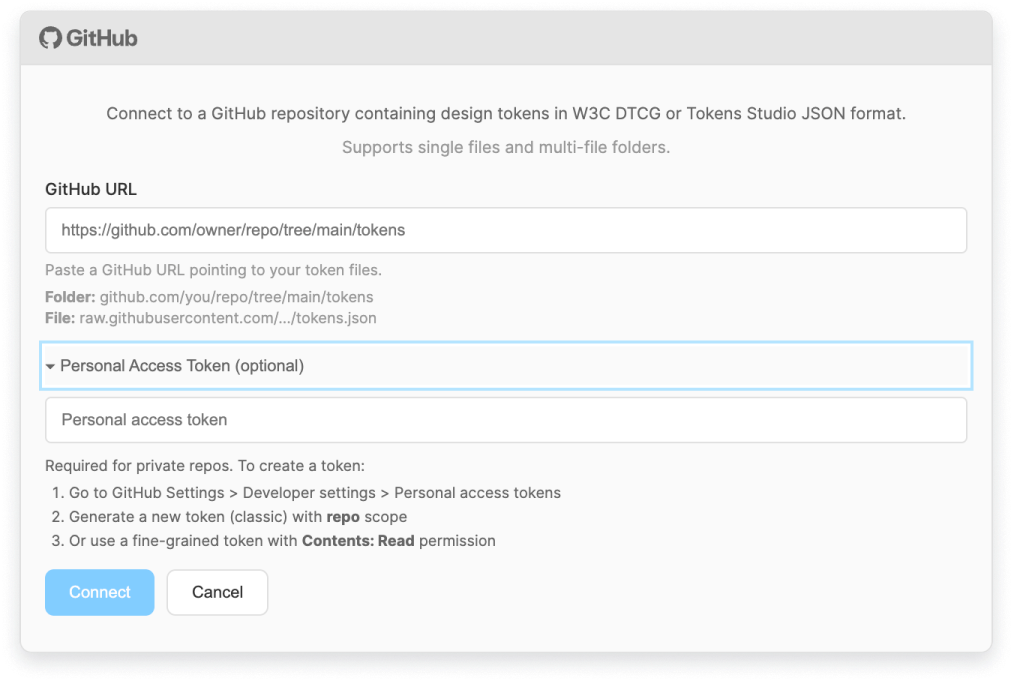
In the **Repository** field, enter the owner and repository name in the format `your-org/design-tokens`.
This must match exactly how it appears on GitHub. For example, if your repository URL is `https://github.com/acme-corp/design-system`, enter `acme-corp/design-system`.
In the **Branch** field, enter the branch LintKit should fetch from. For example, `main`.
Use the branch where your production-ready token file lives. You can temporarily switch to a feature branch to validate in-progress token changes.
In the **Token file path** field, enter the path to your token file relative to the repository root. For example, `tokens/tokens.json`.
This should point to a single JSON file that contains your token definitions.
If your repository is private, provide a GitHub personal access token (PAT):
1. Go to [GitHub Settings > Developer settings > Personal access tokens](https://github.com/settings/tokens)
2. Click **Generate new token**
3. Give the token a descriptive name (for example, "LintKit token sync")
4. Select the `repo` scope (required for private repository access)
5. Click **Generate token** and copy it
Paste the token into the **Personal access token** field in LintKit.
For public repositories, leave this field blank. LintKit accesses public repositories without authentication.
Click **Sync** to fetch your token file from GitHub. LintKit parses the file, extracts token definitions, and auto-configures your rules.
After clicking the connect button, the panel expands to show the repository configuration fields:
## Overview
If your design tokens live in a GitHub repository, LintKit can fetch them directly and auto-configure rules. This keeps your lint rules in sync with your codebase without manual updates.
### When to use GitHub vs Tokens Studio
* **Use GitHub** when your engineering team maintains token files in a repository and you want LintKit to read directly from source control. This is the best choice when tokens are part of your codebase and go through code review.
* **Use Tokens Studio shared plugin data** when your team uses the Tokens Studio Figma plugin and tokens are already synced to your Figma files. This is simpler — no repository configuration needed.
* **Use Tokens Studio API** when your team uses the Tokens Studio cloud platform and you want tokens fetched remotely regardless of which Figma file is open.
### Why use GitHub with LintKit
* **Source control is the source of truth.** Your token JSON is versioned, reviewed, and merged like any other code. LintKit reads from the same file your engineers consume.
* **Branch-based validation.** Point LintKit at a feature branch to validate designs against in-progress token changes before they merge to `main`.
* **No additional platform.** If your tokens already live in GitHub, you don't need a Tokens Studio account or API key — just a repository path and optionally a personal access token for private repos.
* **Change history.** Every token change has a Git commit, so you can trace when a spacing value was added or a color was changed.
***
## Setup
In the plugin, open the **Settings** panel and navigate to **Integrations**.
Toggle on the GitHub integration.
In the **Repository** field, enter the owner and repository name in the format `your-org/design-tokens`.
This must match exactly how it appears on GitHub. For example, if your repository URL is `https://github.com/acme-corp/design-system`, enter `acme-corp/design-system`.
In the **Branch** field, enter the branch LintKit should fetch from. For example, `main`.
Use the branch where your production-ready token file lives. You can temporarily switch to a feature branch to validate in-progress token changes.
In the **Token file path** field, enter the path to your token file relative to the repository root. For example, `tokens/tokens.json`.
This should point to a single JSON file that contains your token definitions.
If your repository is private, provide a GitHub personal access token (PAT):
1. Go to [GitHub Settings > Developer settings > Personal access tokens](https://github.com/settings/tokens)
2. Click **Generate new token**
3. Give the token a descriptive name (for example, "LintKit token sync")
4. Select the `repo` scope (required for private repository access)
5. Click **Generate token** and copy it
Paste the token into the **Personal access token** field in LintKit.
For public repositories, leave this field blank. LintKit accesses public repositories without authentication.
Click **Sync** to fetch your token file from GitHub. LintKit parses the file, extracts token definitions, and auto-configures your rules.
After clicking the connect button, the panel expands to show the repository configuration fields:
 ***
## Supported token formats
LintKit auto-detects which format your file uses. You do not need to specify the format — just point LintKit at the file.
### DTCG format
The [Design Token Community Group](https://tr.designtokens.org/format/) format uses `$value` and `$type` properties on each token:
```json theme={null}
{
"color": {
"primary": {
"$value": "#3B82F6",
"$type": "color"
},
"secondary": {
"$value": "#6366F1",
"$type": "color"
}
},
"spacing": {
"small": {
"$value": "4px",
"$type": "dimension"
},
"medium": {
"$value": "8px",
"$type": "dimension"
},
"large": {
"$value": "16px",
"$type": "dimension"
}
},
"borderRadius": {
"small": {
"$value": "4px",
"$type": "dimension"
},
"medium": {
"$value": "8px",
"$type": "dimension"
}
}
}
```
### Nested tree format
The nested tree format organizes tokens hierarchically using nested objects with a `value` property (without the `$` prefix):
```json theme={null}
{
"color": {
"primary": {
"value": "#3B82F6"
},
"secondary": {
"value": "#6366F1"
}
},
"spacing": {
"small": {
"value": "4"
},
"medium": {
"value": "8"
},
"large": {
"value": "16"
}
},
"borderRadius": {
"small": {
"value": "4"
},
"medium": {
"value": "8"
}
}
}
```
If your file uses a hybrid structure or has tokens at different nesting depths, LintKit still detects and parses them. The key requirement is that each token has a `value` or `$value` property.
***
## How syncing works
Syncing from GitHub is **manual only**. LintKit fetches the latest version of your token file when you click **Sync** in the **Integrations** panel.
There is no auto-sync for GitHub — LintKit does not make network requests without your explicit action. After syncing, token values are parsed and applied the same way as other token sources. See the [Tokens Studio integration](/integrations/tokens-studio) page for details on enforcement modes (advisory vs. strict) and token type toggles.
***
## Best practices
### Branching strategy for tokens
Use Git branches to manage token changes safely, especially when multiple designers work on the same design system:
When making token changes, create a branch from `main` — for example, `tokens/update-spacing-scale` or `tokens/add-brand-colors`. This isolates your changes from other work in progress.
Point LintKit at your feature branch (change the **Branch** field in **Settings** > **Integrations**) and scan your design files. This lets you see how the token changes affect your designs before they merge to `main`.
Push your branch and open a pull request. Token changes go through code review like any other code change. Reviewers can check the JSON diff and flag unintended changes.
After the PR merges, switch LintKit back to `main` and click **Sync** to pick up the merged changes.
When two designers work on tokens simultaneously, branches prevent overwrites. Designer A works on `tokens/new-spacing` while Designer B works on `tokens/brand-colors`. Both merge to `main` independently without conflict — as long as they edit different parts of the token file.
### Smaller files reduce conflicts
If your token file is large and multiple people edit it, consider splitting tokens into separate files by category:
```
tokens/
colors.json
spacing.json
radii.json
typography.json
```
When tokens are split by category, two designers can edit different categories without causing merge conflicts. Use a build step (like Style Dictionary) to combine them into a single file for LintKit.
LintKit currently reads a single JSON file, so you need a combined output. A typical setup:
1. Designers edit category-specific files
2. A build script merges them into `tokens/combined.json`
3. LintKit points to `tokens/combined.json`
### Normalize your token format
Pick either DTCG or nested tree format and stick with it. Mixing formats in the same file can cause parsing inconsistencies. If you're starting fresh, use DTCG — it's the emerging standard and has the widest tooling support.
Consistent formatting also makes Git diffs cleaner. Consider adding a formatting step to your CI pipeline (like Prettier with a JSON plugin) so token files always have consistent indentation and key ordering.
### Automated validation with CI
Add LintKit-compatible validation to your CI pipeline to catch token problems before they merge:
* **JSON validation** — verify the token file parses as valid JSON on every push
* **Schema validation** — check that all tokens have required fields (`$value` and `$type` for DTCG)
* **Completeness checks** — verify that all expected token categories are present
* **No duplicate keys** — flag duplicate token names that would silently overwrite each other
While LintKit itself runs inside Figma and can't be called from CI, the token file it reads can be validated with standard JSON tools in your pipeline.
### Conflict-aware merge semantics
When merging token branches, JSON merge conflicts need special handling:
* **Use a JSON-aware merge tool.** Standard Git merge treats JSON as text, which can produce invalid JSON. Tools like `json-merge-patch` or custom merge drivers handle JSON structure correctly.
* **Review the full token file after merge.** Even when Git reports a clean merge, the combined JSON may have semantic conflicts (e.g., two tokens with the same name but different values added in different branches).
* **Run LintKit after every merge.** Scan your key design files after merging token changes. LintKit catches problems the merge may have introduced — off-scale spacing, missing colors, broken variable references.
* **Keep token keys sorted.** If your build step sorts token keys alphabetically, Git diffs are cleaner and merges are more predictable. Two designers adding tokens to different alphabetical positions won't conflict.
### Preventing the overwrite problem
When multiple designers work on the same design system and create tokens simultaneously, pulling from GitHub can overwrite each other's changes. This is a common pain point — here's how to manage it:
Split token ownership by category:
* Designer A owns color tokens
* Designer B owns spacing and layout tokens
* Designer C owns typography tokens
When ownership is clear, concurrent edits rarely touch the same tokens. If your token file is split into separate files by category, this naturally prevents conflicts.
Never push directly to `main`. Always work on a branch and open a pull request. This:
* Makes token changes visible to the team before they land
* Lets reviewers catch accidental deletions or overwrites
* Creates a clear record of what changed and why
* Forces a rebase/merge that surfaces conflicts early
Establish a team convention: always pull the latest tokens before starting work, and pull again before pushing. This minimizes the window where two people can overwrite each other.
After merging branches, scan your design files with LintKit. If tokens were accidentally lost during the merge, LintKit will show new findings (orphaned fills without matching tokens, off-scale spacing, etc.). This serves as a safety net — if the merge broke something, you'll see it immediately.
***
## Network access
LintKit contacts GitHub only when you click **Sync**. No design data is sent to GitHub — the request only fetches your token file.
The plugin declares access to:
* `api.github.com` — for authenticated API requests (private repositories)
* `raw.githubusercontent.com` — for fetching raw file content
If you are on a restricted network, make sure these domains are accessible.
***
## Security
Your personal access token is stored in plugin storage. This storage is sandboxed to the plugin — it is never exposed to the UI layer or accessible to other plugins.
If you rotate your GitHub PAT, update it in LintKit's **Integrations** panel. The old token stops working immediately after rotation.
***
## Troubleshooting
LintKit could not authenticate with GitHub. Common causes:
* **Private repo, no PAT provided.** If your repository is private, you must provide a personal access token.
* **PAT has expired.** GitHub tokens can expire. Generate a new one and update it in LintKit.
* **PAT missing repo scope.** The token must have the `repo` scope for private repository access. Check your token's permissions at [GitHub Settings > Personal access tokens](https://github.com/settings/tokens).
* **Wrong repository name.** Make sure the **Repository** field matches exactly (for example, `acme-corp/design-system`, not the full URL).
LintKit reached your repository but could not find the specified file. Check:
* **Token file path.** The path is case-sensitive and relative to the repository root. `tokens/tokens.json` is different from `Tokens/tokens.json`.
* **Branch name.** Make sure the branch exists. If your default branch is `main` but you entered `master` (or vice versa), the file won't be found.
* **File has been moved or renamed.** If the token file was recently reorganized, update the path in LintKit.
LintKit could not identify a recognized format. Verify that:
* The file is valid JSON (no syntax errors, trailing commas, or unquoted keys)
* Tokens have either a `$value` property (DTCG) or a `value` property (nested tree format)
* Token types are recognizable — LintKit looks for color, spacing/dimension, and borderRadius tokens
Open your token file locally and confirm it parses as valid JSON.
LintKit fetched and parsed the file but did not find token types it can map to rules. LintKit maps:
* Color tokens to Orphaned Fills and Orphaned Strokes
* Spacing/dimension tokens to Spacing Scale
* Border radius tokens to Corner Radii
If your file only contains typography or other unsupported token types, no rules are auto-configured. Check that your file includes at least one supported type.
LintKit needs to reach `api.github.com` or `raw.githubusercontent.com`. If you are behind a corporate firewall or VPN, these domains may be blocked. Check with your network administrator.
You can test connectivity by opening `https://api.github.com` in your browser — if it loads, LintKit should be able to reach it.
This is the overwrite problem described in the best practices section above. The most reliable fix is to use branches — each designer works on their own branch and merges via pull request. See [Preventing the overwrite problem](#preventing-the-overwrite-problem) for detailed strategies.
***
## Supported token formats
LintKit auto-detects which format your file uses. You do not need to specify the format — just point LintKit at the file.
### DTCG format
The [Design Token Community Group](https://tr.designtokens.org/format/) format uses `$value` and `$type` properties on each token:
```json theme={null}
{
"color": {
"primary": {
"$value": "#3B82F6",
"$type": "color"
},
"secondary": {
"$value": "#6366F1",
"$type": "color"
}
},
"spacing": {
"small": {
"$value": "4px",
"$type": "dimension"
},
"medium": {
"$value": "8px",
"$type": "dimension"
},
"large": {
"$value": "16px",
"$type": "dimension"
}
},
"borderRadius": {
"small": {
"$value": "4px",
"$type": "dimension"
},
"medium": {
"$value": "8px",
"$type": "dimension"
}
}
}
```
### Nested tree format
The nested tree format organizes tokens hierarchically using nested objects with a `value` property (without the `$` prefix):
```json theme={null}
{
"color": {
"primary": {
"value": "#3B82F6"
},
"secondary": {
"value": "#6366F1"
}
},
"spacing": {
"small": {
"value": "4"
},
"medium": {
"value": "8"
},
"large": {
"value": "16"
}
},
"borderRadius": {
"small": {
"value": "4"
},
"medium": {
"value": "8"
}
}
}
```
If your file uses a hybrid structure or has tokens at different nesting depths, LintKit still detects and parses them. The key requirement is that each token has a `value` or `$value` property.
***
## How syncing works
Syncing from GitHub is **manual only**. LintKit fetches the latest version of your token file when you click **Sync** in the **Integrations** panel.
There is no auto-sync for GitHub — LintKit does not make network requests without your explicit action. After syncing, token values are parsed and applied the same way as other token sources. See the [Tokens Studio integration](/integrations/tokens-studio) page for details on enforcement modes (advisory vs. strict) and token type toggles.
***
## Best practices
### Branching strategy for tokens
Use Git branches to manage token changes safely, especially when multiple designers work on the same design system:
When making token changes, create a branch from `main` — for example, `tokens/update-spacing-scale` or `tokens/add-brand-colors`. This isolates your changes from other work in progress.
Point LintKit at your feature branch (change the **Branch** field in **Settings** > **Integrations**) and scan your design files. This lets you see how the token changes affect your designs before they merge to `main`.
Push your branch and open a pull request. Token changes go through code review like any other code change. Reviewers can check the JSON diff and flag unintended changes.
After the PR merges, switch LintKit back to `main` and click **Sync** to pick up the merged changes.
When two designers work on tokens simultaneously, branches prevent overwrites. Designer A works on `tokens/new-spacing` while Designer B works on `tokens/brand-colors`. Both merge to `main` independently without conflict — as long as they edit different parts of the token file.
### Smaller files reduce conflicts
If your token file is large and multiple people edit it, consider splitting tokens into separate files by category:
```
tokens/
colors.json
spacing.json
radii.json
typography.json
```
When tokens are split by category, two designers can edit different categories without causing merge conflicts. Use a build step (like Style Dictionary) to combine them into a single file for LintKit.
LintKit currently reads a single JSON file, so you need a combined output. A typical setup:
1. Designers edit category-specific files
2. A build script merges them into `tokens/combined.json`
3. LintKit points to `tokens/combined.json`
### Normalize your token format
Pick either DTCG or nested tree format and stick with it. Mixing formats in the same file can cause parsing inconsistencies. If you're starting fresh, use DTCG — it's the emerging standard and has the widest tooling support.
Consistent formatting also makes Git diffs cleaner. Consider adding a formatting step to your CI pipeline (like Prettier with a JSON plugin) so token files always have consistent indentation and key ordering.
### Automated validation with CI
Add LintKit-compatible validation to your CI pipeline to catch token problems before they merge:
* **JSON validation** — verify the token file parses as valid JSON on every push
* **Schema validation** — check that all tokens have required fields (`$value` and `$type` for DTCG)
* **Completeness checks** — verify that all expected token categories are present
* **No duplicate keys** — flag duplicate token names that would silently overwrite each other
While LintKit itself runs inside Figma and can't be called from CI, the token file it reads can be validated with standard JSON tools in your pipeline.
### Conflict-aware merge semantics
When merging token branches, JSON merge conflicts need special handling:
* **Use a JSON-aware merge tool.** Standard Git merge treats JSON as text, which can produce invalid JSON. Tools like `json-merge-patch` or custom merge drivers handle JSON structure correctly.
* **Review the full token file after merge.** Even when Git reports a clean merge, the combined JSON may have semantic conflicts (e.g., two tokens with the same name but different values added in different branches).
* **Run LintKit after every merge.** Scan your key design files after merging token changes. LintKit catches problems the merge may have introduced — off-scale spacing, missing colors, broken variable references.
* **Keep token keys sorted.** If your build step sorts token keys alphabetically, Git diffs are cleaner and merges are more predictable. Two designers adding tokens to different alphabetical positions won't conflict.
### Preventing the overwrite problem
When multiple designers work on the same design system and create tokens simultaneously, pulling from GitHub can overwrite each other's changes. This is a common pain point — here's how to manage it:
Split token ownership by category:
* Designer A owns color tokens
* Designer B owns spacing and layout tokens
* Designer C owns typography tokens
When ownership is clear, concurrent edits rarely touch the same tokens. If your token file is split into separate files by category, this naturally prevents conflicts.
Never push directly to `main`. Always work on a branch and open a pull request. This:
* Makes token changes visible to the team before they land
* Lets reviewers catch accidental deletions or overwrites
* Creates a clear record of what changed and why
* Forces a rebase/merge that surfaces conflicts early
Establish a team convention: always pull the latest tokens before starting work, and pull again before pushing. This minimizes the window where two people can overwrite each other.
After merging branches, scan your design files with LintKit. If tokens were accidentally lost during the merge, LintKit will show new findings (orphaned fills without matching tokens, off-scale spacing, etc.). This serves as a safety net — if the merge broke something, you'll see it immediately.
***
## Network access
LintKit contacts GitHub only when you click **Sync**. No design data is sent to GitHub — the request only fetches your token file.
The plugin declares access to:
* `api.github.com` — for authenticated API requests (private repositories)
* `raw.githubusercontent.com` — for fetching raw file content
If you are on a restricted network, make sure these domains are accessible.
***
## Security
Your personal access token is stored in plugin storage. This storage is sandboxed to the plugin — it is never exposed to the UI layer or accessible to other plugins.
If you rotate your GitHub PAT, update it in LintKit's **Integrations** panel. The old token stops working immediately after rotation.
***
## Troubleshooting
LintKit could not authenticate with GitHub. Common causes:
* **Private repo, no PAT provided.** If your repository is private, you must provide a personal access token.
* **PAT has expired.** GitHub tokens can expire. Generate a new one and update it in LintKit.
* **PAT missing repo scope.** The token must have the `repo` scope for private repository access. Check your token's permissions at [GitHub Settings > Personal access tokens](https://github.com/settings/tokens).
* **Wrong repository name.** Make sure the **Repository** field matches exactly (for example, `acme-corp/design-system`, not the full URL).
LintKit reached your repository but could not find the specified file. Check:
* **Token file path.** The path is case-sensitive and relative to the repository root. `tokens/tokens.json` is different from `Tokens/tokens.json`.
* **Branch name.** Make sure the branch exists. If your default branch is `main` but you entered `master` (or vice versa), the file won't be found.
* **File has been moved or renamed.** If the token file was recently reorganized, update the path in LintKit.
LintKit could not identify a recognized format. Verify that:
* The file is valid JSON (no syntax errors, trailing commas, or unquoted keys)
* Tokens have either a `$value` property (DTCG) or a `value` property (nested tree format)
* Token types are recognizable — LintKit looks for color, spacing/dimension, and borderRadius tokens
Open your token file locally and confirm it parses as valid JSON.
LintKit fetched and parsed the file but did not find token types it can map to rules. LintKit maps:
* Color tokens to Orphaned Fills and Orphaned Strokes
* Spacing/dimension tokens to Spacing Scale
* Border radius tokens to Corner Radii
If your file only contains typography or other unsupported token types, no rules are auto-configured. Check that your file includes at least one supported type.
LintKit needs to reach `api.github.com` or `raw.githubusercontent.com`. If you are behind a corporate firewall or VPN, these domains may be blocked. Check with your network administrator.
You can test connectivity by opening `https://api.github.com` in your browser — if it loads, LintKit should be able to reach it.
This is the overwrite problem described in the best practices section above. The most reliable fix is to use branches — each designer works on their own branch and merges via pull request. See [Preventing the overwrite problem](#preventing-the-overwrite-problem) for detailed strategies.